In short
- Peeky Notes is a sticky notes app for Windows 10 and 11, installed from the Microsoft Store. Notes sit in a deck at the left or right edge of the screen: hover a tab to read a note, click it to open it.
- In Peeky Notes, CtrlAltN makes a new note from anywhere in Windows. Search, the archive, import, export and Settings are in the All Notes window, which CtrlAltA opens.
- Peeky Notes saves automatically, keeping every note in one file on your PC,
Documents\Peeky Notes\notes.json, and never uploads it. Back up… in Settings copies every note to a folder you choose. - The Peeky Notes trial lasts 7 days, with everything unlocked and no account, email or card. After it, notes stay readable, searchable and exportable; a one-time $5.99 licence covers two devices and unlocks writing again when you sign in.
On this page
- How to install Peeky Notes
- What you see the first time you open it
- How the Peeky Notes deck works
- How to write and format a note
- How to find and manage notes in All Notes
- Peeky Notes settings worth changing
- How the 7-day trial and the licence work
- What to do if the deck doesn't appear
- Where to go next
- Questions
Peeky Notes is a sticky notes app for Windows 10 and 11 that keeps your notes in a deck at the left or right edge of the screen. Move the pointer onto the thin strip at that edge and your notes open into tabs; hover a tab to read the note, and click it to open the note in its own window. Search, the archive, import, export and Settings live in the All Notes window, which CtrlAltA opens from anywhere.
How to install Peeky Notes
Peeky Notes comes from the Microsoft Store only: open Peeky Notes in the Microsoft Store, install it, then open it from Start. It needs Windows 10 version 1809 or later, or Windows 11, on an x64 PC; there is no Arm64 version. Updates come through the Store, which installs them automatically while App updates is on in the Store's own settings. This guide describes version 1.2.0, released on 5 October 2026; About in All Notes shows yours.
What you see the first time you open it
- The deck appears on the right edge of your main display, with four sample notes to try it on: Groceries, Today, Ideas and Side-projects.
- A five-step tour called Welcome to Peeky Notes covers the deck, the edge and theme, the shortcuts and the trial. It shows only once.
- The 7-day trial starts, with everything unlocked and no account, email or card.
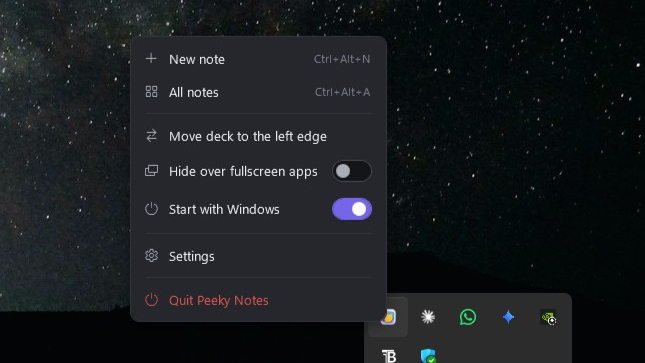
- Start with Windows is off, so after a restart Peeky Notes only runs once you open it from Start.
The deck and your notes have no taskbar button; Peeky Notes lives in the system tray instead. Left-click its icon to bring the deck out, right-click it for the menu. If the icon is hidden in the tray's overflow area, Windows lets you drag it into the system tray to keep it in view.
How the Peeky Notes deck works
The deck sits on one edge of one display, on top of other windows, with no Alt+Tab entry. It never takes keyboard focus, and clicks outside its pills, tabs and buttons go through to the window underneath. How the Peeky Notes deck stays idle explains how it is built to do that.
Pills, tabs, + and +N
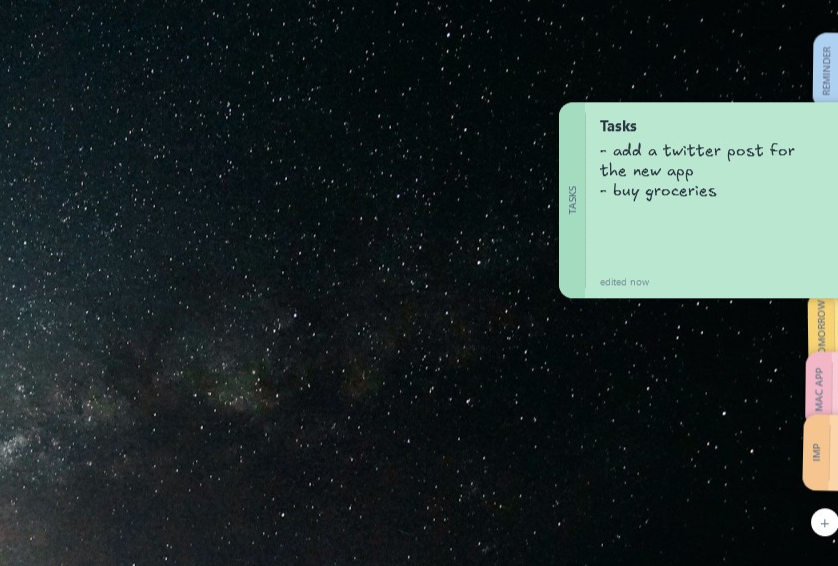
At rest the deck is a thin, dark strip of small coloured pills halfway down the edge. Move the pointer onto it - no click needed - and the pills open into tabs, each with its note's title sideways in capitals, cut to eight characters (Groceries reads GROCERIE). Up to eight tabs fit, fewer on a short screen, and any extra notes show as a chip such as +3 that opens All Notes. The round white + under the tabs makes a new note.
Hover to read, click to open
Hover a tab and its note grows out of the edge, showing the title, the text and when it was last edited, such as edited 5m. You can't type on the deck: click the note to open it in its own window. Move the pointer away and the deck folds back to pills.
Drag tabs to reorder
Press on a tab's coloured strip, where the title is, and drag it up or down; All Notes keeps the same order. Tabs only move up and down, so a note can't be dragged to the other edge, whatever the Ideas sample note says. To move the whole deck to the other side, use Screen edge in Settings or Move deck to the left edge (or right edge) in the tray menu.
How to write and format a note
Press CtrlAltN anywhere in Windows, click the deck's +, or choose New note in the tray menu. The note opens in its own window with the title Untitled note selected, ready to type over, and joins the bottom of the deck. There is no Save button: the note saves itself a moment after you stop typing. Drag the empty part of the top row to move the window.
Formatting, lists and links
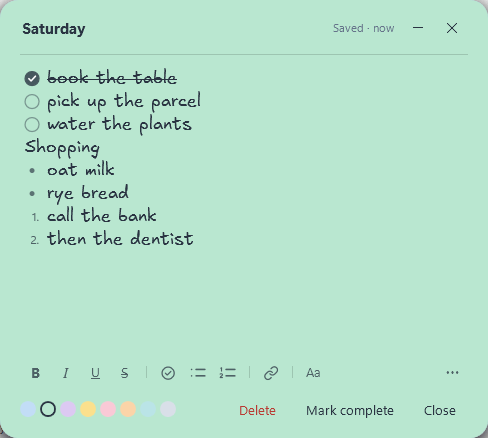
Select some words and a small formatting bar appears over them. The same buttons sit along the bottom of every note, with Aa for the font and ⋯ for Note options.
- BoldCtrlB
- ItalicCtrlI
- UnderlineCtrlU
- StrikethroughCtrlShiftX
- ChecklistCtrlShiftL
- Bulleted listCtrlShift8
- Numbered listCtrlShift7
- Add a linkCtrlK
Underline and strikethrough need selected words, and there are no text colours, sizes or headings. Lists also start as you type: at the beginning of a line, type - for bullets, 1. for numbers, [ ] for a checklist or [x] for a ticked task, then press Space. Backspace straight afterwards undoes it, and Enter on an empty line ends a list. Click a checklist circle to tick a task; Move completed to the bottom, under ⋯, sends finished tasks down.
For a link, select the words, press CtrlK, paste the address and press Enter. Hold Ctrl and click a link to open it; select it and press CtrlK again to change or remove it.
Fonts and colours
Aa switches a note between Handwritten, Normal, Rounded and Typewriter; Font for new notes in Settings sets the one new notes start in. The eight dots at the bottom set the colour - Blue, Mint, Lilac, Butter, Blush, Peach, Sky or Slate - and Ctrl. steps to the next.
Can you keep a note on top?
No. Note windows go behind whatever you click next, and there is no pin; what stays on top is the deck, so the notes on it are always a hover away. A minimised note disappears completely: click it on the deck, or open it from All Notes, to get it back. Keeping a sticky note always on top in Windows covers other ways to float a window.
Completing and deleting
Close or Esc closes a note. Mark complete archives it: the note leaves the deck but stays in All Notes. Delete or CtrlBackspace dims the note and gives you ten seconds to click Undo or press CtrlZ. After that it is gone: there is no trash, and only an earlier copy of your notes can bring it back, as recovering a deleted sticky note explains.
How to find and manage notes in All Notes
The All Notes window holds every note, archived ones included. Open it with CtrlAltA, All notes in the tray menu, or by opening Peeky Notes from Start while it is running; CtrlAltL opens it on the archive. The sidebar has All notes, On the deck and Archive, then Settings and About.
- Search matches titles and text in the section you are in. The button inside the search box changes the order: deck order, recently edited, oldest first or title.
- Click a note to read and edit it on the right, or double-click it to open its own window.
- Reorder by dragging the six-dot handle at a note's right end, which appears on hover while the list is in deck order. The deck follows.
- Archive with the Mark complete icon above the selected note; archived notes stay searchable under Archive. To act on several notes, hover their colour dots to tick them, then choose Archive or Delete. Deleting from All Notes asks first and cannot be undone.
- Import
.mdand.txtfiles with the button beside the list heading. Each file becomes a note, and Markdown marks stay as plain characters. - Export saves the selected note as a Markdown or text file, from the export icon above it. It is never locked, even after the trial; exporting sticky notes to text or Markdown covers the formats.
Peeky Notes settings worth changing
Open Settings from the tray menu or the All Notes sidebar. Changes apply as you make them.
| Setting | What it does | Default |
|---|---|---|
| Theme | Match Windows, Light or Dark for All Notes and the menus. Notes and the deck look the same either way. | Match Windows |
| Screen edge | Puts the deck on the Left or Right. | Right |
| Font for new notes | The font a new note starts in. | Handwritten |
| Display | The screen the deck lives on. Shown when two or more displays are connected. | Main display |
| Hide over fullscreen apps | Hides the deck while a fullscreen app, such as a game or a presentation, is in front on the deck's screen. Maximised windows don't count. | On |
| Start with Windows | Opens Peeky Notes when you sign in to Windows. | Off |
Display shows a map of your screens: click one and the deck moves there. If that screen is unplugged, the deck waits on the main display until it returns; sticky notes on multiple monitors has more. Opening sticky notes when Windows starts covers Start with Windows and how to turn startup apps off again.
Shortcuts lists the global keys, note-window keys and list shorthand. None can be changed, and a global shortcut another app already uses won't fire. Sticky notes keyboard shortcuts for Windows has every key.
Your notes: the folder, Back up… and Restore…
Where they are kept shows your notes folder, normally C:\Users\YourName\Documents\Peeky Notes, with Copy path and Open folder. Every note is in one file there, notes.json, which stays if you uninstall Peeky Notes. Back up… asks where to put a backup, then makes a dated folder holding a Markdown file per note and peekynotes-backup.json. Restore… reads that file back: it adds missing notes, keeps the more recently edited copy of any note in both, and removes nothing. Backing up sticky notes and moving them to a new PC walks through it.
How the 7-day trial and the licence work
The trial runs for 7 days from the first time you open Peeky Notes, with everything unlocked. After it, Peeky Notes is read-only and nothing is lost: you can still open, read, search, copy, export and back up every note, but not write, edit, recolour, archive, delete or import. A note window then says Your trial has ended. This note is read-only. and offers an Unlock button.
A licence is one payment of $5.99 - a one-time purchase, not a subscription. Buy it on the buy page, which the app's buy buttons open, and the key arrives by email. The licence belongs to an account, and signing in is what unlocks the app:
- 1
Open the Account page
Click Not signed in at the bottom of the All Notes sidebar.
- 2
Sign in
Click Sign in and finish in your browser, with a code sent by email or a Google or Microsoft account. There is no password.
- 3
Check the licence
If you signed in with the email you bought with, the licence attaches itself, and Licence in Settings reads Licensed through your account. If not, click Enter a key there, paste the key from your purchase email and click Activate.
One licence covers two devices at once, counting each Windows account on a PC as one. The Account page lists them, and signing one out there frees its place.
What to do if the deck doesn't appear
- After a restart, open Peeky Notes from Start, then turn on Start with Windows.
- Over a fullscreen app, the deck hides on purpose. Left-click the tray icon to bring it out.
- With no notes on it - every note archived or deleted - the deck stays hidden. Press CtrlAltN.
- On the wrong screen, check Display in Settings.
Where to go next
Questions
Is Peeky Notes free?
No. It has a 7-day trial with everything unlocked and no account, email or card, then costs $5.99 once for a perpetual licence that covers two devices. Without one, your notes stay readable, searchable and exportable.
Do I need an account to use Peeky Notes?
Not for the 7-day trial, which needs no account, email or card. A Peeky Notes licence belongs to an account, so after buying you sign in on each PC with a code sent by email or a Google or Microsoft account. Your notes are never uploaded either way.
Where does Peeky Notes save my notes?
In one file, notes.json, in the Peeky Notes folder inside Documents. Where they are kept in Settings shows the full path, and Peeky Notes never uploads the file.
Does Peeky Notes sync between PCs or to a phone?
No. There is no sync, phone app or web version. To move notes to another PC, use Back up… on the old one and Restore… on the new one, both in Settings under Your notes.
Does Peeky Notes work offline?
Yes. Without signing in it makes no network requests apart from opening links you click. Signed in, it checks its licence about every six hours and works offline for up to 14 days between checks; the check never includes your notes.
Sources
Checked on 14 November 2026. Apps change - if something here has gone out of date, write to [email protected] and it will be corrected.

Peeky Notes
Sticky notes for Windows 10 and 11
Notes that wait at the edge of your screen.
Seven days with everything unlocked, no account and no card. Then one licence, bought once - and if you never buy, your notes stay readable and exportable.
 Peeky Notes