In short
- Microsoft documents no start-with-Windows setting in the classic Microsoft Sticky Notes app. Notes you leave open stay on screen after a restart unless you exit with AltF4, and Microsoft says that on Windows 10 the app occasionally won't open on start.
- To open the classic Microsoft Sticky Notes app on startup every time, turn it on in Settings > Apps > Startup if it is listed, or drag it from
shell:appsfolderintoshell:startup. To undo it, switch it off in Settings or on Task Manager's Startup apps tab, or delete the shortcut. - In Peeky Notes, turn on Start with Windows in Settings, under Behaviour, or in the tray menu. Each time you sign in, the deck appears at the screen edge and on the display you chose.
On this page
To open sticky notes on startup in Windows 11 or 10, switch the app on in Settings > Apps > Startup if it is listed, or put a shortcut to it in the Startup folder. Microsoft documents no setting for this in its classic Sticky Notes app, which brings back notes left open after a restart but on Windows 10 occasionally doesn't open on start. In Peeky Notes it is one switch, Start with Windows.
Does Microsoft Sticky Notes open by itself when Windows starts?
Usually, if you leave it open. Microsoft's help for the classic app says sticky notes "stay on your screen even after you restart the computer", and that exiting with AltF4 stops open notes showing after a restart. Its troubleshooting page adds that, in Windows 10, Sticky Notes occasionally won't open on start and you'll need to open it from Start; sticky notes on Windows 10 in 2026 covers what else to expect there. If your notes are missing rather than closed, see the fixes for Microsoft Sticky Notes not working.
Sticky Notes in the OneNote app, which WinAltS opens, is a separate product, and we found no Microsoft documentation of what it does at sign-in. The steps below are for the classic app.
How to open Microsoft Sticky Notes on startup
Microsoft's guide to configuring startup applications gives two routes: the list in Settings, for apps registered with a startup task, and the Startup folder for the rest.
First, look in Settings
Select Start > Settings > Apps > Startup. If Sticky Notes is listed, set its toggle to On.
If it isn't listed, add it to the Startup folder
- 1
Open the Apps folder
Right-click Start, select Run, type
shell:appsfolderand press Enter. A window opens listing every app installed on the PC. Keep it open. - 2
Open the Startup folder
Open Run again, type
shell:startupand press Enter. Apps in this second window start automatically when you sign in. - 3
Drag Sticky Notes across
Drag Sticky Notes from the first window to the second, and Windows leaves a shortcut there. If you see two, the one Microsoft gave a purple-tinted icon with a "new" tag in 2024 is Sticky Notes in OneNote.
How to stop sticky notes opening at startup
- Settings: in Start > Settings > Apps > Startup, set the app's toggle to Off.
- Task Manager: right-click Start, select Task Manager, open the Startup apps tab, select the app and select Disable.
- Startup folder: open
shell:startupfrom Run and delete the shortcut. - Classic Sticky Notes left open: exit it with AltF4 before you restart.
How to start Peeky Notes with Windows
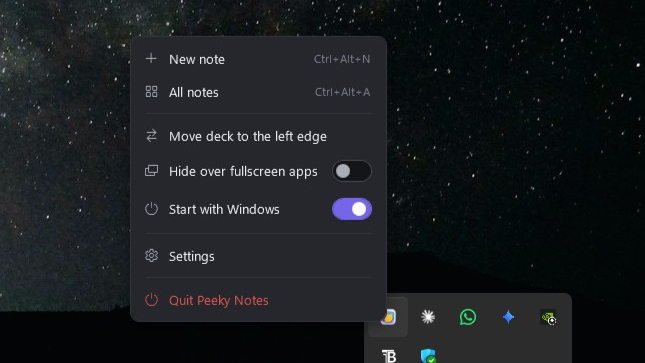
Peeky Notes has its own switch, and it is off when you install the app.
- 1
Open Settings
Right-click the Peeky Notes icon in the system tray and choose Settings, or select Settings near the bottom of the All Notes sidebar.
- 2
Turn on Start with Windows
Under Behaviour, switch on Start with Windows. From your next sign-in, Windows starts Peeky Notes for you.
The hint under the switch reads "Adds a per-user entry you can remove in Task Manager." That entry is a Windows startup task named Peeky Notes, listed on the Startup apps tab in Task Manager and in Settings > Apps > Startup; switching it off there works too.
What you see after you sign in
When Peeky Notes starts with Windows, its deck appears on the edge set under Screen edge in Settings: right unless you picked left. With two or more screens, Display in Settings shows a map of them, and the deck goes on the one you clicked, or on your main display if you never picked one. If that screen isn't connected when you sign in - a laptop away from its dock, say - the deck waits on your main display and moves back when the screen returns. Sticky notes on multiple monitors has more.

The deck stays above other windows. Move the pointer onto its strip of pills and they become tabs: hover one to read the note, click it to open it. Note windows you had open are not reopened. When a fullscreen app is in front on that display, the deck hides while Hide over fullscreen apps is on (the default); left-click the tray icon to bring it out. For notes on the desktop itself, see how to keep sticky notes on your desktop in Windows 11.
Questions
Why is Sticky Notes launching on startup, and how do I stop it?
Microsoft says notes left open in the classic Sticky Notes app stay on your screen after a restart. Exit it with AltF4 before you restart, and if you added it to startup yourself, turn it off in Settings > Apps > Startup or delete its shortcut from shell:startup.
Where is the Startup folder in Windows 11 and 10?
Type shell:startup in Run (right-click Start, then Run) to open it. Microsoft gives the path as %userprofile%\AppData\Roaming\Microsoft\Windows\Start Menu\Programs\Startup, and shortcuts in it start when you sign in. For every user of the PC, use shell:common startup.
Does Peeky Notes open automatically when Windows starts?
Only once you turn on Start with Windows, which is off when you install it. The switch is in Settings, under Behaviour, and in the tray menu. After that, each sign-in brings back the deck at your screen edge; note windows that were open are not reopened.
Sources
Checked on 14 November 2026. Apps change - if something here has gone out of date, write to [email protected] and it will be corrected.
- Configure Startup applications in Windows - Microsoft Support
- Use a screen reader with Sticky Notes - Microsoft Support
- Where did my Sticky Notes go? - Microsoft Support
- Remember better with the new Sticky Notes experience from OneNote - Microsoft Tech Community
- OneNote's new Sticky Notes feature for Windows receives update - Microsoft Tech Community
- StartupTaskState Enum - Microsoft Learn

Peeky Notes
Sticky notes for Windows 10 and 11
Notes that wait at the edge of your screen.
Seven days with everything unlocked, no account and no card. Then one licence, bought once - and if you never buy, your notes stay readable and exportable.
 Peeky Notes