In short
- Microsoft Sticky Notes, the classic app that comes with Windows 11, puts notes on the desktop: open it from Start, press CtrlN and drag the note anywhere. Notes you leave open come back after a restart, unless you closed the app with AltF4.
- The classic Microsoft Sticky Notes app can't stay on top of other windows, so notes end up behind them. Microsoft suggests pinning the app to the taskbar so your notes are a click away.
- The newer Sticky Notes in the OneNote app, opened with WinAltS, can dock beside your other apps and pin a popped-out note on top. Microsoft says it isn't available on PCs managed with Intune policy or with Office LTSC licences.
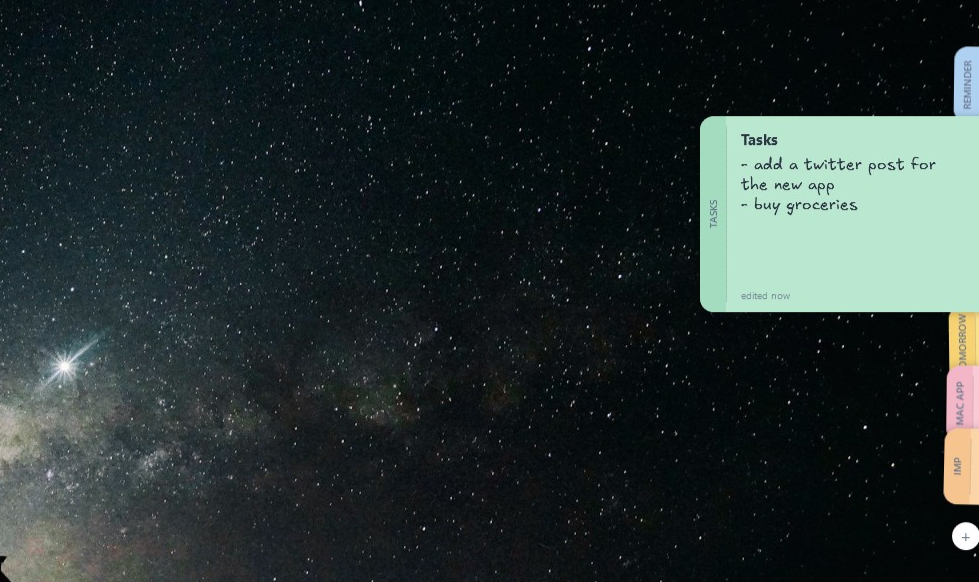
- Peeky Notes, our app, keeps notes in a deck at the left or right edge of the screen that stays on top of other windows, even when you show the desktop: a thin strip of pills at rest, tabs when the pointer reaches the edge, a preview of the note on hover. It runs on Windows 10 (version 1809 or later) and Windows 11.
On this page
- How to put sticky notes on your desktop in Windows 11
- Why do sticky notes disappear from the desktop?
- Can Microsoft Sticky Notes stay on top of other windows?
- What does the new Sticky Notes in OneNote add?
- Sticky notes on a Windows 10 desktop: what's different
- A different approach: keep notes at the edge of the screen
- How to set up Peeky Notes
- Which approach should you use?
- Questions
To keep sticky notes on your desktop in Windows 11, open Microsoft Sticky Notes from Start, press CtrlN and drag the note wherever you want it: the app remembers the spot, and notes you leave open come back after a restart. What the classic app can't do is stay in front, so other windows bury your notes and Show desktop clears them away. For notes that stay in view, Microsoft's newer Sticky Notes in OneNote can pin a note on top, and Peeky Notes, our app, keeps them at the edge of the screen.
How to put sticky notes on your desktop in Windows 11
- 1
Open Microsoft Sticky Notes
Select Start, type “Sticky Notes” and open it. It comes preinstalled on Windows 11; if it isn't in your apps, install Microsoft Sticky Notes from the Microsoft Store.
- 2
Write a note
Click + at the top left of the notes list or of any note, or press CtrlN.
- 3
Put it where you want it
Drag the note by its top bar to any spot on the desktop, and drag its edges to make it bigger. Microsoft says the app remembers where you put it.
- 4
Pin closed notes back to the desktop
The X on a note only closes it, and the note stays in the notes list. Double-click it there and it goes back on the desktop.
- 5
Pin the app
With Sticky Notes open, right-click its taskbar icon and choose Pin to taskbar, or search for Sticky Notes in Start, right-click it and choose Pin to Start. Right-clicking the taskbar icon also offers New note.
Why do sticky notes disappear from the desktop?
Classic notes are ordinary windows, so they come and go with everything else on screen. How you get them back depends on what happened:
| What happened | What happens to your notes | How to get them back |
|---|---|---|
| You opened other windows | They go behind them. | Click Sticky Notes on the taskbar, then press CtrlTab to step through your open notes. |
| You pressed WinD to show the desktop | They are hidden along with your other open windows. | Press WinD again. |
| You restarted the PC | Notes you left open reopen where you left them. | If they don't, open Sticky Notes from Start: Microsoft says that on Windows 10 it occasionally doesn't open on start. |
| You closed the app with AltF4 | They don't come back after the next restart. | Open Sticky Notes and double-click notes in the notes list. |
| The app closed with one note open | Next time only that note opens, without the list. | Click … on the note, then Notes list. |
If a note is missing from the notes list as well, that is a different problem: Microsoft Sticky Notes not working covers signing in, reinstalling and getting notes back.
Can Microsoft Sticky Notes stay on top of other windows?
Not the classic app. “You cannot currently have Sticky Notes stay on top of other applications,” say Microsoft's support pages, which suggest pinning it to the taskbar instead. The newer Sticky Notes in OneNote can pin a popped-out note on top, and Microsoft's PowerToys adds a shortcut, WinCtrlT, that pins the active window above the others. How to keep a sticky note always on top covers the options, and how to stop a pinned note covering fullscreen apps.
What does the new Sticky Notes in OneNote add?
Microsoft now has a second Sticky Notes. It is a feature of the OneNote app, so it comes with OneNote rather than with Windows. It opens with WinAltS or from its own Start entry (in 2024 Microsoft gave it a purple-tinted icon tagged “new”), and it has two things the classic app lacks for keeping notes in view:
- Docking. You can dock it to the desktop and use it side by side with other apps. Microsoft's May 2024 launch post listed docking with an extended monitor as a known limitation.
- Pin on top. Pop a note out into its own window, click the pin icon in its top bar, and it stays above other apps.
It needs a recent version of the OneNote app, and Microsoft says it isn't available on PCs managed with Intune policy or with an Office LTSC licence. Microsoft still offers the classic app but recommends moving to the new one; your notes carry across if you sign in to both with the same account.
Sticky notes on a Windows 10 desktop: what's different
- The same classic app. Microsoft Sticky Notes is the same Store app on Windows 10 and 11, and Microsoft's help covers both, so the steps above work the same way.
- Two Windows 10 quirks. Microsoft's help says that on Windows 10, classic notes sometimes close unexpectedly, and the app sometimes doesn't launch on start, so notes seem to vanish. Reopen them from the notes list, or open the app from Start.
- Version requirements. Sticky Notes in OneNote needs Windows 10 version 1903 or later, and PowerToys needs version 2004 or later.
- Support has ended. Microsoft ended support for Windows 10 on 14 October 2025. It still runs, but outside Microsoft's Extended Security Updates programme it gets no more security updates. Sticky notes on Windows 10 in 2026 covers what still works, and for how long.
- Peeky Notes runs on Windows 10 version 1809 or later as well as Windows 11, on x64 PCs.
A different approach: keep notes at the edge of the screen
Peeky Notes, our app, takes a different approach to desktop sticky notes. Instead of leaving them lying on the desktop, it keeps them in a deck at the left or right edge of the screen, one move of the mouse away:
- At rest, the deck is a thin strip of small coloured pills halfway down the edge.
- When your pointer reaches the edge, the pills open into tabs labelled with your notes' titles - no click needed.
- Hover a tab and that note grows out of the edge, showing a preview of its text and when it was last edited.
- Click it and the note opens in a floating window, where you edit it. Closing the window leaves the note on the deck.

The deck stays above other windows, but at rest it is only a thin strip, and clicks away from the pills go through to the window underneath. It opens over your work only while your pointer is there, and it is still there when a maximised window fills the screen or you press WinD to show the desktop. Neither the deck nor the note windows have a taskbar button: Peeky Notes sits in the system tray, and left-clicking its icon brings the deck out. For classic Sticky Notes, hiding sticky notes from the taskbar covers the few options Windows has.
You choose the edge and, with more than one display, which screen the deck lives on; Hide over fullscreen apps, on by default, tucks it away while a game or a presentation fills its screen. Sticky notes on multiple monitors covers second screens and laptops coming off a dock.
There are trade-offs. Note windows don't stay on top, don't remember where you put them and don't reopen after a restart: your notes wait on the deck instead, and a minimised note stays out of sight until you click it there. There is no sync, phone app or web version. Why sticky notes belong at the edge of the screen explains the thinking behind the deck.
How to set up Peeky Notes
- 1
Install it
Get Peeky Notes from the Microsoft Store and open it from Start. It needs Windows 10 version 1809 or later, or Windows 11, on an x64 PC. A 7-day trial starts with everything unlocked - no account, no email and no card.
- 2
Meet the deck
The deck appears on the right edge of your main display with four sample notes, and a short welcome tour lets you choose the side of the screen.
- 3
Add a note
Press CtrlAltN anywhere in Windows, or move the pointer to the edge and click the round + under the tabs. The note opens in its own window with Untitled note selected: type a title, then the note. It saves itself a moment after you stop typing, and Esc closes it.
- 4
Choose the edge
Right-click the tray icon and choose Move deck to the left edge (or the right edge), or use Screen edge in Settings. With two or more displays, Display in Settings picks the screen.
- 5
Start it with Windows
Start with Windows is off at first. Switch it on in the tray menu or in Settings, and the deck is waiting each time you sign in. Opening sticky notes when Windows starts covers the other ways.
Getting started with Peeky Notes covers the rest of the app, from formatting to backups.
Which approach should you use?
| Microsoft Sticky Notes (classic) | Sticky Notes in OneNote | Peeky Notes | |
|---|---|---|---|
| Price | Free | Free, with the OneNote app | $5.99 once, after a 7-day trial |
| Where notes sit | Anywhere on the desktop | In a window you can dock beside your apps, or popped out one by one | In a deck at the left or right edge |
| Stays in view over other windows | No | Popped-out notes you pin | The deck does; note windows don't |
| Show desktop (WinD) | Hides the notes | Not documented | The deck stays |
| After a restart | Notes left open come back | Not documented | The deck comes back if Start with Windows is on |
| On your phone | Yes, if you sign in, through OneNote | Yes, if you sign in, through OneNote | No |
Choose classic Sticky Notes if
- You want it free and already installed
- You want your notes on your phone too
Choose Sticky Notes in OneNote if
- You want a note pinned on top while you work
- You want notes docked beside your other apps
- Your PC isn't managed with Intune policy or on Office LTSC
Choose Peeky Notes if
- You want notes one move away without parking them over your work
- You want notes that are still there when you show the desktop
- You want notes kept on your PC, in a file Peeky Notes never uploads
Peeky Notes vs Microsoft Sticky Notes goes through the two feature by feature, and the best sticky notes apps for Windows covers other apps worth a look.
Questions
How do I make Sticky Notes always visible on my desktop?
Classic Microsoft Sticky Notes can't stay in front of other windows, so Microsoft suggests pinning it to the taskbar to keep your notes a click away. The newer Sticky Notes in OneNote can pin a popped-out note on top, and Peeky Notes keeps your notes in a deck at the screen edge that stays on top of other windows, with each note a hover away.
Do sticky notes stay on the desktop after a restart?
In classic Microsoft Sticky Notes, notes you leave open come back after a restart, unless you closed the app with AltF4. Microsoft says that on Windows 10 the app occasionally doesn't open on start; if so, open it from Start. In Peeky Notes, turn on Start with Windows and the deck is there with your notes when you sign in.
How do I get Win+D to leave my sticky notes showing?
Microsoft documents no way to do that with classic Microsoft Sticky Notes: Show desktop hides its notes along with your other open windows, and pressing WinD again brings them back. The Peeky Notes deck stays on screen when you show the desktop, so your notes are still a hover away.
Where is Sticky Notes in Windows 11?
Select Start and type Sticky Notes to find the classic Microsoft Sticky Notes app, which comes preinstalled on Windows 11; if it's missing, install it from the Microsoft Store. If you have the OneNote app, the newer Sticky Notes in OneNote has its own Start entry, given a purple-tinted icon in 2024, and opens with WinAltS.
Sources
Checked on 14 November 2026. Apps change - if something here has gone out of date, write to [email protected] and it will be corrected.
- Get started with Sticky Notes - Microsoft Support
- Where did my Sticky Notes go? - Microsoft Support
- Use a screen reader with Sticky Notes - Microsoft Support
- Keyboard shortcuts for Sticky Notes - Microsoft Support
- See your sticky notes on other devices and the web - Microsoft Support
- Microsoft Sticky Notes - Microsoft Store
- Policy-based removal of pre-installed Microsoft Store apps - Microsoft Community Hub
- Remember better with the new Sticky Notes experience from OneNote - Microsoft Community Hub
- OneNote's new Sticky Notes feature for Windows receives update - Microsoft Community Hub
- What's the difference between the OneNote versions? - Microsoft Support
- PowerToys Always On Top - Microsoft Learn
- Installing PowerToys - Microsoft Learn
- Keyboard shortcuts in Windows - Microsoft Support
- Use Sticky Notes on Your Windows 11 Desktop - Geek Rewind
- How to Minimize or Hide Sticky Notes in Windows 11 - All Things How
- Customize the Windows Start Menu - Microsoft Support
- Windows 10 support has ended on October 14, 2025 - Microsoft Support
- Peeky Notes - Microsoft Store

Peeky Notes
Sticky notes for Windows 10 and 11
Notes that wait at the edge of your screen.
Seven days with everything unlocked, no account and no card. Then one licence, bought once - and if you never buy, your notes stay readable and exportable.
 Peeky Notes