In short
- Classic Microsoft Sticky Notes has a taskbar button while it is open, and Microsoft's 2019 release notes say its notes can be picked one by one in Alt+Tab. Microsoft documents no way to hide either.
- Windows has no setting that hides one running app from the taskbar or Alt+Tab: unpinning removes only the shortcut, auto-hide hides the whole taskbar, and Alt+Tab can be filtered by virtual desktop, not by app.
- Peeky Notes keeps notes in a deck at the screen edge with no taskbar button and no Alt+Tab entry, and its note windows have no taskbar button either. It runs from a tray icon, and its All Notes window shows on the taskbar only while it is open.
On this page
Windows has no setting to hide sticky notes from the taskbar or Alt+Tab, and Microsoft documents none in either of its Sticky Notes apps. While classic Microsoft Sticky Notes is open it has a taskbar button, and Microsoft's release notes say its notes can be picked one by one in Alt+Tab. What Windows can do is cut the clutter: unpin the icon, keep buttons combined, auto-hide the whole taskbar, or park your notes on a second desktop. The other route is a notes app that keeps notes off the taskbar, such as Peeky Notes, which we make.
How Microsoft Sticky Notes shows up on the taskbar and in Alt+Tab
Microsoft's help for classic Microsoft Sticky Notes talks about "the Sticky Notes icon in the taskbar": right-click it for New note, and its taskbar menu has All notes. Microsoft's release notes for version 3.6 (2019) say you can "select specific notes with the taskbar or with Alt + Tab and Win + Tab", with CtrlTab still there for moving between notes. The current help pages don't mention Alt+Tab at all, so that note is the best guide there is: each open note can turn up in Alt+Tab and Task view on its own.
The help offers no way to hide the taskbar button either. Where it mentions the taskbar, the advice goes the other way: because the classic app can't stay on top of other windows, Microsoft suggests pinning Sticky Notes to the taskbar "to see your list of notes instantly or to create a new note quickly". If notes slipping behind windows is the real problem, see keeping a sticky note always on top and keeping sticky notes on your desktop.
Sticky Notes in OneNote
Microsoft's posts about the newer Sticky Notes in OneNote also suggest pinning it to the taskbar, and describe opening it with WinAltS, docking it beside your other apps and pinning a popped-out note on top. None of them mentions a tray mode or a way to keep it off the taskbar or out of Alt+Tab. Old vs new Microsoft Sticky Notes explains how the two apps differ.
Can Windows hide sticky notes from the taskbar?
Not with a setting. Microsoft's taskbar help says running apps are displayed on the taskbar, and none of the options it documents hides one app's button. Whether a window gets a button is up to the app that makes it: Microsoft's developer documentation tells developers to make it a tool window, or give it a hidden owner, to keep it off the taskbar. We haven't vetted any third-party tool that hides other apps' buttons, so we don't recommend one.
Here is what the built-in settings do. To open Taskbar settings, right-click the taskbar.
| Setting | Where | Does it hide Sticky Notes? |
|---|---|---|
| Unpin from taskbar | Right-click the pinned icon | Only while it is closed: an open app keeps its button |
| Combine taskbar buttons and hide labels (Windows 11), Combine taskbar buttons (Windows 10) | Taskbar settings, under Taskbar behaviors on Windows 11 | No, but combined, all its notes share one button |
| Show my taskbar on all displays | Taskbar settings > Taskbar behaviors (Windows 11) | No: it decides which displays get a taskbar |
| Automatically hide the taskbar (Windows 10: Automatically hide the taskbar in desktop mode) | Taskbar settings, under Taskbar behaviors on Windows 11 | Yes, with the rest of the taskbar, until you point at the edge of the screen where it sits |
| Show all open windows when I press Alt+Tab | Settings > System > Multitasking > Desktops | Only for notes on another virtual desktop |
Combining decides how many buttons Sticky Notes takes. Windows 10's default, Always, hide labels, shows an app as one unlabelled button however many of its windows are open. Never, which Windows 11 added in 2023, gives each window a labelled button of its own, which can mean one per open note. Both versions have a separate combine setting for the taskbars on extra displays, and sticky notes on multiple monitors covers where the notes themselves end up.
Removing sticky notes from Alt+Tab with a desktop of their own
The only Windows setting Microsoft documents for keeping windows out of Alt+Tab works by virtual desktop, and classic Sticky Notes has supported virtual desktops since version 3.6. So you can give your notes a desktop of their own:
- 1
Make a second desktop
Press WinTab and select New desktop.
- 2
Move your notes to it
Still in Task view, drag each note onto the new desktop's thumbnail, or right-click it and choose Move to.
- 3
Filter the taskbar and Alt+Tab
In Settings, go to System > Multitasking and expand Desktops. Set On the taskbar, show all the open windows to Only on the desktop I'm using, and set Show all open windows when I press Alt+Tab to the desktop you're using too.
- 4
Switch when you need them
WinCtrlRight arrow and WinCtrlLeft arrow move between desktops.
The catch: Sticky Notes then shows in the taskbar and Alt+Tab only on that desktop, which is also the only place your notes are. The other Windows routes either leave its button alone or hide the whole taskbar.
Sticky notes without a taskbar icon: Peeky Notes
Peeky Notes, the app we make, is built the other way round. Your notes sit in a deck at the left or right edge of the screen: a thin strip of coloured pills at rest, tabs when your pointer reaches the edge, a preview of the note when you hover its tab. Here is where each part of the app shows up:
- The deck: no taskbar button and no Alt+Tab entry, and it never takes keyboard focus from what you are typing in; how the Peeky Notes deck stays idle explains how.
- A note opened in its own window to edit it: no taskbar button. Esc closes it; minimise it and it disappears until you open it again from the deck or All Notes.
- The All Notes window, where you search and manage every note: a taskbar button and an Alt+Tab entry while it is open. Close it and both go.
- The welcome tour and What's new, which you see once (on first run, and after a feature update): a taskbar button while they are open.
The app itself lives in the system tray. Left-click its icon to bring the deck out, even when it is hidden over a fullscreen app; right-click it for New note, All notes, Settings and the rest. The icon works from the tray's overflow area too, so you can drag it there to hide it and keep the corner of the taskbar clear.
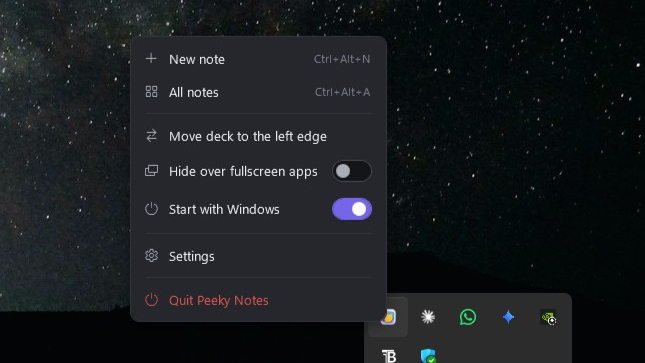
- New noteCtrlAltN
- Open the All Notes windowCtrlAltA
- Open All Notes on the ArchiveCtrlAltL
These work from anywhere in Windows, so you never need a taskbar button to reach a note; sticky notes keyboard shortcuts lists the rest. Open Peeky Notes from Start while it is running and you get the All Notes window, not a second copy. It runs on Windows 10 (version 1809 or later) and Windows 11, with a 7-day trial that needs no account, no email and no card, then $5.99 once.
Other notes apps that can stay off the taskbar
Peeky Notes isn't the only one. According to its release notes, checked in November 2026, Notezilla shows its icon on the taskbar by default, version 9.0.37 (November 2025) added a Run in background option that removes it, and switching between notes with Alt+Tab is an option in its Preferences. Peeky Notes vs Notezilla compares the two, and screen-edge notes apps for Windows covers apps that tuck notes into the side of the screen.
Questions
Can Microsoft Sticky Notes minimise to the system tray?
Not according to Microsoft's documentation, which describes no tray icon or tray mode for either Sticky Notes app. The classic app has a taskbar icon, which Microsoft suggests pinning, and Sticky Notes in OneNote opens from a taskbar pin or WinAltS. Peeky Notes runs from a tray icon instead.
How do I hide sticky notes from Alt+Tab?
Windows can only filter the windows Alt+Tab shows by virtual desktop. Move your notes to a second desktop and set Show all open windows when I press Alt+Tab, under Settings > System > Multitasking > Desktops, to the desktop you're using; the notes leave Alt+Tab, but they leave your screen too. The Peeky Notes deck has no Alt+Tab entry at all.
Does unpinning Sticky Notes remove it from the taskbar?
Only while it is closed. Unpin from taskbar removes the shortcut, but Windows shows running apps on the taskbar, so Sticky Notes gets a button again whenever it is open.
How do I hide sticky notes on my desktop without deleting them?
In classic Microsoft Sticky Notes, close the note with its X: Microsoft says closing doesn't delete it, and it stays in the notes list until you double-click it there. In Peeky Notes, Mark complete moves a note off the deck into the Archive in All Notes, where you can restore it to the deck later.
Does Peeky Notes have a taskbar icon?
Only while its All Notes window, the welcome tour or What's new is open. The deck and note windows have no taskbar button; the app runs from a tray icon, and CtrlAltN and CtrlAltA work from anywhere in Windows.
Sources
Checked on 16 November 2026. Apps change - if something here has gone out of date, write to [email protected] and it will be corrected.
- Get started with Sticky Notes - Microsoft Support
- Use a screen reader with Sticky Notes - Microsoft Support
- Troubleshoot Sticky Notes - Microsoft Support
- Where did my Sticky Notes go? - Microsoft Support
- Sticky Notes updates - Microsoft Learn
- Introducing the new Sticky Notes app on Windows - Microsoft Tech Community
- Remember better with the new Sticky Notes experience from OneNote - Microsoft Tech Community
- OneNote's new Sticky Notes feature for Windows receives update - Microsoft Tech Community
- Customize the Taskbar in Windows - Microsoft Support
- KB5032190 (OS Builds 22621.2715 and 22631.2715), 14 November 2023 - Microsoft Support
- Configure Multiple Desktops in Windows - Microsoft Support
- How to Multitask in Windows - Microsoft Support
- The Taskbar - Microsoft Learn
- Notezilla Release Notes - Conceptworld

Peeky Notes
Sticky notes for Windows 10 and 11
Notes that wait at the edge of your screen.
Seven days with everything unlocked, no account and no card. Then one licence, bought once - and if you never buy, your notes stay readable and exportable.
 Peeky Notes