In short
- The Peeky Notes deck is one topmost, layered WPF window, 326 DIP wide and as tall as the work area. It never moves or resizes while you use it: every state happens inside it, with cards moved by a
TranslateTransform. - The deck stays out of the way: Windows lets clicks through its fully transparent pixels, it answers
WM_NCHITTESTitself for the rest, andWS_EX_NOACTIVATEstays on for good because notes are edited in a separate window. - On an ordinary desktop nothing in the deck runs on a repeating timer. Fullscreen apps are detected with
SetWinEventHook; the only polling is a 2-second re-check while a fullscreen app covers the deck's display. - Peeky Notes' own measurements, taken on an earlier build - about 7 MB working set, 48 to 53 MB private memory and 0 ms of CPU over 30 idle seconds - have not been re-measured since: they are the target the app was built to hold, not a claim about today's version.
On this page
- What does a low-CPU desktop app on Windows have to avoid?
- A window that never resizes while you use it
- How do you make a topmost WPF window click-through?
- How the deck avoids stealing keyboard focus
- Hover to expand, without the flicker
- Detecting fullscreen apps with SetWinEventHook
- Keeping a WPF app low on memory
- The numbers, and the caveat that comes with them
- What still runs on a timer
- Questions
The Peeky Notes deck stays idle because, on an ordinary desktop, nothing in it runs on a repeating timer: it waits for Windows to tell it that something changed. It is a single topmost WPF window that never moves or resizes as you use it, claims only the pixels it has drawn, never takes keyboard focus, and hears about fullscreen apps from SetWinEventHook instead of asking every second. Those four decisions are most of what it takes to build a low-CPU desktop app for Windows that is on screen all day.
What does a low-CPU desktop app on Windows have to avoid?
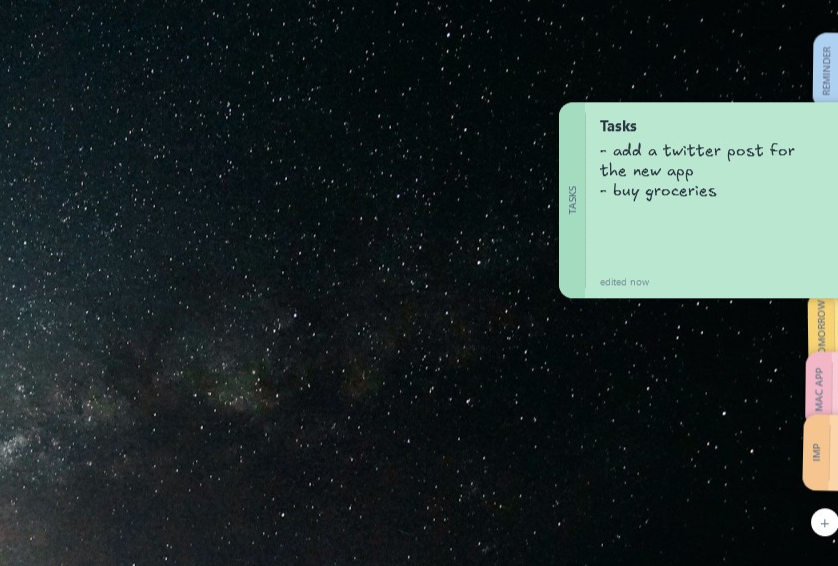
The deck is the part of Peeky Notes that is always on screen: a strip of small coloured pills on one edge of one display, above your other windows. Reach the edge and the pills fan out into tabs; hover a tab and that note expands in place; click it and the note opens in its own window. The home page shows how the deck works; why sticky notes belong at the edge of the screen is its own article. Anything always there has to avoid three things:
- Taking clicks. The window is topmost and 326 DIP (device-independent pixels) wide. Any point it claims by mistake is a scroll bar or an icon you cannot reach.
- Taking the keyboard. Moving the pointer to the edge must never pull focus out of what you are typing in.
- Waking up for nothing. Most of the day nobody looks at it, so waiting should cost nothing.

A window that never resizes while you use it
The deck window is 326 DIP wide (a 300 DIP card plus a 26 DIP rail) and as tall as the display's work area. It is placed again only when the display, the DPI, the taskbar or your chosen edge changes, never because of the pointer. Every state, from pills to an expanded note, is content moving inside it.
Resizing a layered, topmost window on every hover flickers and fights the compositor, so the window stays put. The cards sit on a Canvas and move only by their TranslateTransform, so moving one never triggers a measure pass on its siblings, and the extra rail of width lets an expanded note slide clear while the other tabs stay visible at the edge. Each card's body has a fixed height and is clipped rather than stretched, so an expanding card reveals text measured and wrapped once instead of re-wrapping it every frame.
How do you make a topmost WPF window click-through?
Two layers keep the deck from claiming clicks. First, it is a borderless WPF window with AllowsTransparency on and no background, which makes it a layered window, and Windows lets mouse messages through any of its pixels whose alpha is zero. Second, where Windows does ask - with WM_NCHITTEST, the message that asks which part of a window is under a point - the deck runs WPF's VisualTreeHelper.HitTest over its own visual tree, returning HTCLIENT only when that lands on something and HTTRANSPARENT everywhere else. Three details matter:
- Invisible is not absent. WPF hit-tests transparent elements too. At rest the cards fade to zero opacity, so they also switch
IsHitTestVisibleoff; otherwise the hit test would go on finding cards nobody can see. - Coordinates are signed. On a monitor to the left of or above the main one, the coordinates packed into
lParamare negative, so the handler reads them as signed 16-bit values rather than unsigned words. HTTRANSPARENTis not a pass to other apps. Microsoft documents it as handing the hit test only to windows underneath in the same thread. Clicks reach other programs through a layered window's fully transparent pixels, or anywhere on one withWS_EX_TRANSPARENT- which makes the whole window click-through, no use for a deck that has to notice the pointer.
How the deck avoids stealing keyboard focus
When its window is created, the deck adds two extended window styles: WS_EX_NOACTIVATE, so clicking it does not make it the foreground window, and WS_EX_TOOLWINDOW, which keeps it off the taskbar and out of Alt+Tab. It never removes them. That only works because the deck never accepts typing: its cards are read-only TextBlock elements, and clicking a note opens it in a separate, ordinary window that does take the keyboard. An earlier design let you type on the deck, which meant switching WS_EX_NOACTIVATE off while a note was open; moving editing into its own window removed the toggle.
Hover needs no global mouse hook. The deck's own window gets an ordinary WM_MOUSEMOVE when the pointer reaches the strip, and TrackMouseEvent asks for a WM_MOUSELEAVE when it goes. Leaving is the hard part: nothing is drawn in the small gaps around the fanned tabs, so resting the pointer in one looks exactly like leaving. An invisible PeekCatcher behind the cards gives WPF's hit test something to find in the rail column, and the collapse timer does not trust the leave message anyway: 220 ms later it reads the real cursor position with GetCursorPos, tests it against the deck's own geometry, and keeps checking until the pointer has really gone.
Hover to expand, without the flicker
Hovering a tab expands that note in place, from 76 to 196 DIP tall. Done naively, it loops: the note grows, a neighbour slides under the stationary pointer, takes the hover, expands, and hands it back. Three rules stop that:
- Positions come from the peeked layout, so an expanding note keeps the top edge it had when the pointer arrived instead of sliding out from under it.
- Only what is below moves. Tabs below the note shift down by exactly the 120 DIP it gained and tabs above stay put - unless that would run the stack off the bottom of the display, in which case the whole stack shifts up by the overflow. The tab count reserves those 120 DIP up front, so hovering the last note cannot push the + button off screen.
- A 90 ms lock ignores new hovers while the neighbours reflow under the pointer: long enough to stop a hand-off war, short enough not to feel sticky.
The expand runs for 190 ms on a plain ease-out. An overshoot would push the note past the screen edge and drag it back, and staggering the neighbours would open the room after the note had grown into it.
Detecting fullscreen apps with SetWinEventHook
The deck steps aside when an app goes fullscreen on its display and comes back afterwards. That is Hide over fullscreen apps, on by default; our guide to keeping notes from covering fullscreen apps covers it from the user's side. The obvious build, a timer asking every second which window is in front, is exactly the idle cost the deck exists to avoid, so FullscreenWatcher listens instead:
- One SetWinEventHook call covers
EVENT_SYSTEM_FOREGROUNDthroughEVENT_SYSTEM_MINIMIZEEND, a range that takes in the foreground changing, Alt+Tab, and windows being moved, sized, minimised and restored. It is out-of-context and skips the app's own process. - A window can go fullscreen without the foreground changing - a video going fullscreen in the window it was already playing in - so a second hook listens for
EVENT_OBJECT_LOCATIONCHANGE. Windows raises that for window and caret movement, so the hook is scoped to the foreground window's thread, ignores everything but that window moving, and is re-pointed whenever the foreground changes. - Each event that gets through restarts a 120 ms one-shot timer, so a burst produces one check.
If SHQueryUserNotificationState reports QUNS_RUNNING_D3D_FULL_SCREEN (a full-screen, exclusive-mode Direct3D app) or QUNS_PRESENTATION_MODE, the deck hides; otherwise it compares the foreground window's rectangle with its monitor's, which catches borderless fullscreen. First it rules out what only looks fullscreen: its own windows, maximised ones (with an auto-hiding taskbar, those used to count), the desktop, taskbar, Start, Task View and other shell surfaces by class name, and anything on another display - see sticky notes on multiple monitors. QUNS_BUSY is left out on purpose: it says a full-screen app is running, not where, so it stayed set while you worked on another screen.
The watcher has one repeating timer. Missing a hide event costs nothing; missing a show event once left the deck hidden until the app restarted. So while a fullscreen app covers the deck's display, and only then, a watchdog re-checks every 2 seconds. Two details for anyone building the same thing: keep the callback delegate in a field, so the garbage collector cannot reclaim it while the hook lives, and re-hook from inside the callback rather than from a timer, because out-of-context events are delivered on the thread that called SetWinEventHook, and that thread needs a message loop.
Staying on top without a timer
Topmost needs upkeep too: a fullscreen app closing, an installer raising itself or Explorer restarting can leave the deck under other windows while WPF's Topmost still reads true. The deck re-asserts its place with one SetWindowPos call (HWND_TOPMOST, no move, no resize, no activation) on events that arrive anyway: every fullscreen re-check, changes to the display, DPI or Windows settings, and the TaskbarCreated message the shell broadcasts to top-level windows when it creates the taskbar.
Keeping a WPF app low on memory
- Rebuild only when membership changes. Among changes to notes, only adding, removing, archiving or reordering rebuilds the deck's cards, and a drag that renumbers several notes raises one rebuild, not one per note. Title and colour edits update the bound cards in place; a title box updates its note on every keystroke, so anything else would rebuild the deck as you type.
- Detach finished animations. A WPF animation that holds its final value keeps overriding the property after it ends. On completion
Anim.cswrites the final value as a local value, then removes the animation withBeginAnimation(property, null)- in that order, so the property never flickers back - and finished clocks never pile up. - Destroy windows instead of hiding them. The All Notes window is created when you open it and destroyed when you close it. A hidden WPF window keeps its whole visual tree, brushes and font caches resident.
- Pick the garbage collector. The project sets
ServerGarbageCollection,ConcurrentGarbageCollectionandRetainVMGarbageCollectionto false. Workstation GC and releasing segments to Windows are .NET's defaults anyway (the csproj notes that server GC alone would reserve per-core heaps worth 50 MB or more); turning background GC off is the real change. - Compact, then trim, when things go quiet. Three seconds after the deck collapses, after startup and after a window closes, a one-shot timer at
ApplicationIdlepriority runs two blocking, compacting full collections, large object heap included, then callsSetProcessWorkingSetSize(-1, -1). Moving the pointer onto the deck first cancels it.
The numbers, and the caveat that comes with them
| Measurement | Result |
|---|---|
| Working set, idle | About 7 MB, flattered by the trim |
| Private bytes (commit) | About 53 MB; the README's own note on it says about 48 MB |
| CPU, 30 seconds fully idle | 0 ms, too little to measure |
| CPU, pointer parked on an expanded note | 0 ms over 12 seconds |
| Exe size | 1.04 MB, framework-dependent and no longer shipped; the Store package bundles .NET 8 and is tens of megabytes |
Distrust the working set. SetProcessWorkingSetSize(-1, -1) removes as many pages as possible from it but frees none of them: Windows keeps those pages cached in RAM until the process touches them again or the memory is needed elsewhere. So the working set drops much further than the app's real commit: the private figure is the honest one, and the compaction before the trim is what actually gives memory back.
Timing matters too: in the first 20 seconds or so after launch, JIT compilation, font realisation and the startup compacting GC look like a 10% CPU spin and about 30 MB of extra commit, all gone once the app settles - hence measuring at 25 seconds.
What still runs on a timer
The app as a whole has a handful of repeating timers, each tied to a narrow case:
| Timer | Interval | Runs only |
|---|---|---|
| Fullscreen watchdog | Every 2 seconds | While a fullscreen app covers the deck's display |
| Licence check | 5 seconds after launch, then every 6 hours | While you are signed in. It never carries note content |
| All Notes clock | Every 45 seconds | While All Notes is open, to refresh times such as 'edited 5m' |
| Note window clock | Every 20 seconds | While that note window is open, for its 'Saved' label |
| Save retry | After 3, 10 and 30 seconds, then every 60 | After a save has failed, until one succeeds |
Everything else starts because something happened and stops on its own: the debounced save after an edit, the 120 ms fullscreen check, the idle trim, the ten-second undo countdown after you delete a note from its window, the auto-scroll while you drag a note near either end of the All Notes list, and the 220 ms collapse check, which runs only while the deck is out and the pointer seems to have gone. The six-hour gap is deliberate: checking more often would only notice a remote sign-out sooner, and a signed-in app keeps working offline for up to 14 days between check-ins. What the check sends is on the privacy page, and why Peeky Notes keeps notes in a local file is its own article.
Questions
Does Peeky Notes use CPU when it's idle?
It is built not to. On an ordinary desktop nothing in the deck repeats on a timer, and our measurement on an earlier build recorded 0 ms of CPU over 30 idle seconds - the target the app was built to hold rather than a fresh measurement.
How much memory does Peeky Notes use?
On an earlier build with ten notes, we recorded about 7 MB of working set and about 48 to 53 MB of private memory; the working-set number is flattered by trimming. Neither has been re-measured since the theme system, settings pane and licensing engine were added.
How do you make a WPF window click-through except where it draws?
Make it a layered window with nothing painted where clicks should pass: in WPF, AllowsTransparency on and no background, and Windows lets the mouse through every fully transparent pixel. The Peeky Notes deck also answers WM_NCHITTEST, returning HTCLIENT where VisualTreeHelper.HitTest finds an element and HTTRANSPARENT elsewhere, and turns IsHitTestVisible off on elements that fade out, because WPF still hit-tests transparent elements. HTTRANSPARENT alone only hands the hit test to windows in the same thread, so it will not pass clicks to other apps.
How can a topmost window avoid stealing keyboard focus?
Give it WS_EX_NOACTIVATE, so clicking it does not make it the foreground window, and WS_EX_TOOLWINDOW to keep it off the taskbar and out of Alt+Tab. The Peeky Notes deck keeps both for its whole life, which works because it never accepts typing: notes open in a separate window to edit.
How do you detect a fullscreen app on Windows without polling?
Hook EVENT_SYSTEM_FOREGROUND through EVENT_SYSTEM_MINIMIZEEND with SetWinEventHook, add a location-change hook scoped to the foreground window's thread, then check SHQueryUserNotificationState and compare the foreground window with its monitor. Peeky Notes adds a 2-second re-check only while a fullscreen app covers the deck's display, so a missed event cannot leave the deck stuck.
Will the deck get in the way of games or presentations?
Not by default: Hide over fullscreen apps is on, so the deck steps aside when a fullscreen app takes over its display and comes back afterwards. You can switch it off in Settings or from the tray menu.
Sources
Checked on 14 November 2026. Apps change - if something here has gone out of date, write to [email protected] and it will be corrected.
- Window Features: layered windows - Microsoft Learn
- Transparent Windows in WPF (archived blog) - Microsoft Learn
- WM_NCHITTEST message (Winuser.h) - Microsoft Learn
- Hit Testing in the Visual Layer (WPF) - Microsoft Learn
- Extended Window Styles (Winuser.h) - Microsoft Learn
- SetWinEventHook function (winuser.h) - Microsoft Learn
- Event Constants (Winuser.h) - Microsoft Learn
- QUERY_USER_NOTIFICATION_STATE (shellapi.h) - Microsoft Learn
- The Taskbar - Microsoft Learn
- How to: Set a Property After Animating It with a Storyboard (WPF) - Microsoft Learn
- Garbage collector config settings (.NET) - Microsoft Learn
- SetProcessWorkingSetSize function - Microsoft Learn
- Working Set - Microsoft Learn

Peeky Notes
Sticky notes for Windows 10 and 11
Notes that wait at the edge of your screen.
Seven days with everything unlocked, no account and no card. Then one licence, bought once - and if you never buy, your notes stay readable and exportable.
 Peeky Notes