In short
- To move a sticky note to another monitor in Windows, drag it by its top, or click it and press WinShiftLeft arrow or WinShiftRight arrow. The screens must be set to Extend (WinP).
- Windows 11 can minimise windows from an external monitor when you undock and put them back when you re-dock: Remember window locations based on monitor connection is under Settings > System > Display > Multiple displays.
- Classic Microsoft Sticky Notes remembers where you put each note. For the newer Sticky Notes in the OneNote app, Microsoft listed docking on an extended monitor as a known limitation in May 2024.
- Peeky Notes keeps your notes in a deck on the left or right edge of one screen, chosen under Settings > Behaviour > Display. If that screen is unplugged, the deck waits on the main display and moves back by itself when the screen returns.
On this page
To move sticky notes between multiple monitors in Windows, treat each note like any other window: drag it to the other screen, or click it and press WinShiftLeft arrow or WinShiftRight arrow. Notes land on the wrong screen when a monitor goes away, for example when a laptop leaves its dock, and Windows 11 can put them back when you re-dock. Peeky Notes keeps notes in a deck on one screen, which you pick once in Settings.
How to move sticky notes between multiple monitors
First, the screens have to share one desktop. Press WinP and choose Extend; with displays extended you can move items between them, as Microsoft's guide to multiple monitors puts it. Duplicate shows the same picture on both. Then drag the note, or use Windows' keyboard shortcuts:
- Move the active window to the monitor on the leftWinShiftLeft arrow
- Move the active window to the monitor on the rightWinShiftRight arrow
Which screen counts as left or right comes from the layout in Windows' display settings, not from your desk. If a note or the pointer goes the wrong way, select Start > Settings > System > Display, drag the screens to match where they sit, and select Apply.
In classic Microsoft Sticky Notes, the app that comes with Windows 11, grab the top of a note and drag it across. Microsoft says the app remembers where you put each note and opens notes where you left them, but we found nothing in its help about a screen that is no longer connected.
Sticky Notes in the OneNote app
The newer Sticky Notes in the OneNote app (WinAltS) can pop any note out into its own window, or dock to your desktop beside other apps. When it rolled out in May 2024, Microsoft listed a known limitation: the "Dock to Desktop" feature "does not work well with extended monitor", and said it was working on a fix. We have not found a later statement that it is fixed.
Why sticky notes end up on the wrong monitor after undocking
When a monitor is disconnected, Windows has to do something with its windows, sticky notes included. Microsoft describes what Windows 11 does: when you undock, the windows on your external monitor are minimised, and when you re-dock, Windows puts everything back where you had it. Two options control this; Microsoft documents them for Windows 11 only.
- 1
Open Display settings
Select Start > Settings > System > Display, scroll down and expand Multiple displays.
- 2
Keep window locations
Tick Remember window locations based on monitor connection, so windows go back to a monitor when it reconnects.
- 3
Decide what happens meanwhile
Minimize windows when a monitor is disconnected decides whether that monitor's windows are minimised while it is gone.
If a note is missing now, re-dock or reconnect the screen first, then move the note to a screen that is always connected. Notes that vanished for other reasons are covered in Microsoft Sticky Notes not working: fixes and getting notes back.
Keep notes on the screen you choose with Peeky Notes
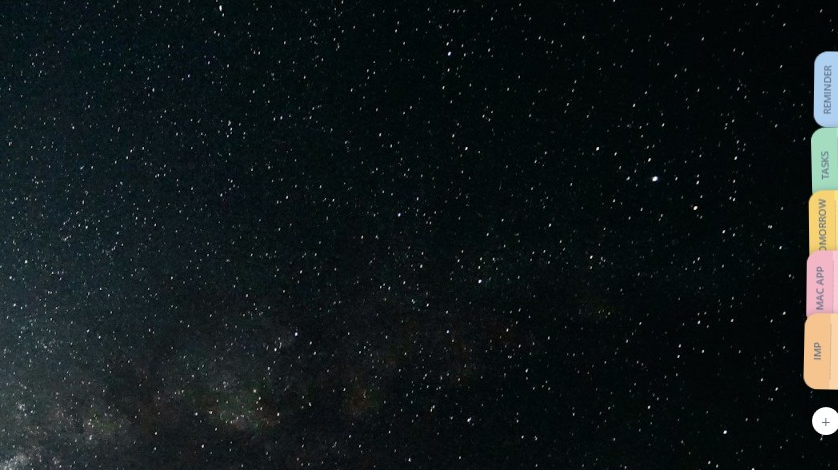
Peeky Notes, which we make, keeps notes in a deck on the left or right edge of one screen. Move the pointer to that edge and the notes come out as tabs; hover one to read it. The deck lives on one display at a time: it does not follow the pointer to another screen and cannot be dragged there. You choose its screen in Settings.
- 1
Open Settings
Right-click the Peeky Notes tray icon and choose Settings.
- 2
Choose the screen
Under Behaviour, Display shows a small map of your screens, laid out as Windows arranges them. Click one and the deck moves there at once. The row appears when two or more displays are connected, and while the screen you chose is unplugged.
- 3
Choose the edge
Under Appearance, pick Left or Right for Screen edge, or use Move deck to the left edge or Move deck to the right edge in the tray menu.
The map numbers screens left to right, then top to bottom, so its numbers may differ from Windows' own. Your main display has a small taskbar line, and hovering a screen shows its name.
With screens side by side, an outer edge is easier to hit: the pointer stops there, but carries straight on over an edge the screens share. More on that in why sticky notes belong at the edge of the screen.
What happens to the deck when you undock a laptop
If the chosen screen isn't connected, the deck goes to your main display. Peeky Notes keeps your choice and moves the deck back by itself when the screen returns, and the choice holds each time Peeky Notes starts with Windows - see opening sticky notes automatically when Windows starts. If you never chose a screen, the deck follows whichever display Windows calls your main display, which can change when you dock.
Meanwhile, Display says the screen "isn't connected, so the deck is on your main display until it is". Peeky Notes knows a screen by the path Windows reports for it, which normally stays the same for the same monitor on the same port. If the deck doesn't come back after you plug into a different port or dock, click the screen in the map again. To find the deck, left-click the tray icon: it comes out on its screen.
How many tabs fit depends on the screen's height and scaling, up to eight: a shorter screen, or one scaled up further, fits fewer. The rest wait behind a chip such as "+3", which opens All Notes. The deck re-fits itself whenever it changes screen.
Note windows and fullscreen apps on two screens
A note clicked on the deck opens in its own window in the middle of the deck's screen; CtrlAltN opens a new one in the middle of whichever screen the pointer is on. Drag a note window by the empty part of its top row. Note windows have no taskbar button: if one is minimised, as Windows may do when you undock, click its note on the deck to bring it back. Peeky Notes doesn't remember where note windows were or reopen them when it starts, so a restart never puts one on a screen that has gone.
Hide over fullscreen apps, on by default, only hides the deck for a fullscreen app on the deck's own screen, so a game on the other monitor leaves it alone. Note windows are ordinary windows that others can cover; how to keep a sticky note always on top covers the options.
Which suits two screens better
Choose classic Microsoft Sticky Notes if
- You want separate notes left in fixed spots across both screens.
- You want an app that is free and already on Windows 11.
Choose Peeky Notes if
- You want your notes together on one screen you pick, out of the way until you reach its edge.
- You dock and undock, and want the deck back on its screen by itself.
- You are happy to pay $5.99 once, after a 7-day trial with no account, no email and no card.
The other differences are in Peeky Notes vs Microsoft Sticky Notes.
Questions
How do I put sticky notes on my second monitor?
Press WinP and choose Extend, then drag the note by its top onto the second screen, or click the note and press WinShiftLeft arrow or WinShiftRight arrow to move it to the monitor on that side. In Peeky Notes, pick the screen for the deck under Settings > Behaviour > Display.
Why do my sticky notes move around when I plug in a second screen?
Each note is a window, and Windows rearranges windows as monitors come and go. Windows 11 can minimise the windows on an external monitor when you undock and, with Remember window locations based on monitor connection ticked under Settings > System > Display > Multiple displays, puts them back when you re-dock.
How do I get back a sticky note that went off screen?
Reconnect or re-dock the monitor it was on, so Windows can put the note back, then drag it onto a screen that stays connected. Peeky Notes moves its deck to your main display by itself; if one of its note windows is out of reach, choose Quit Peeky Notes in the tray menu and start it again, because note windows don't reopen at start.
Can Peeky Notes show the deck on both monitors?
No. The deck lives on one display at a time, on its left or right edge, and does not follow the pointer to the other screen. You pick the display under Settings > Behaviour > Display; until then it uses your main display.
What happens to Peeky Notes when I undock my laptop?
If the deck was on a screen that leaves with the dock, it moves to your main display, and Peeky Notes keeps your choice of screen. When that screen is connected again, the deck moves back to it by itself.
Sources
Checked on 14 November 2026. Apps change - if something here has gone out of date, write to [email protected] and it will be corrected.
- How to use multiple monitors in Windows - Microsoft Support
- Keyboard shortcuts in Windows - Microsoft Support
- Get started with Sticky Notes - Microsoft Support
- Remember better with the new Sticky Notes experience from OneNote - Microsoft 365 Blog
- Microsoft Sticky Notes - Microsoft Store
- Policy-based removal of pre-installed Microsoft Store apps - Windows IT Pro Blog

Peeky Notes
Sticky notes for Windows 10 and 11
Notes that wait at the edge of your screen.
Seven days with everything unlocked, no account and no card. Then one licence, bought once - and if you never buy, your notes stay readable and exportable.
 Peeky Notes