In short
- The classic Microsoft Sticky Notes app can't keep a note on top of other windows - Microsoft's support pages say so. Sticky Notes in the OneNote app can: pop a note out and click the pin icon in its top bar.
- PowerToys Always On Top, part of Microsoft's free PowerToys, pins the active window above all others when you press WinCtrlT, and pressing it again unpins it. It runs on Windows 11 and on Windows 10 version 2004 or later.
- Peeky Notes has no keep-on-top option for its note windows. Its deck, the strip of notes at the left or right screen edge, is always on top instead: hover a tab and that note opens out.
- A note pinned with PowerToys can sit over fullscreen films and slideshows until you unpin it. Peeky Notes' Hide over fullscreen apps, on by default, hides the deck while the window you are using is fullscreen on the deck's display.
On this page
To keep sticky notes always on top in Windows 11 and 10, use the pin in Sticky Notes in the OneNote app, or Microsoft's free PowerToys Always On Top, which pins whichever window is active when you press WinCtrlT. The classic Microsoft Sticky Notes app can't keep a note on top by itself. Peeky Notes, which we make, has no pin for its note windows either - what stays on top is its deck, the strip of notes at the screen edge.
Can Microsoft Sticky Notes stay on top?
Microsoft makes two things called Sticky Notes, and only one of them can. The classic Microsoft Sticky Notes is a Microsoft Store app. The newer Sticky Notes in the OneNote app is part of OneNote for Windows and opens with WinAltS; in 2024 Microsoft gave its Start menu shortcut a purple-tinted icon to set it apart from the classic app's.
The classic app has no on-top option
Microsoft's Troubleshoot Sticky Notes page is plain about it: "You cannot currently have Sticky Notes stay on top of other applications." Its Where did my Sticky Notes go? page, updated in November 2026, says the same. Microsoft's suggestion is to pin the app to the taskbar (with Sticky Notes open, right-click its taskbar icon and choose Pin to taskbar), which puts your notes list one click away but keeps no note in view. For that, try PowerToys Always On Top, below.
If your notes have vanished rather than slipped behind other windows, see fixing Microsoft Sticky Notes when it stops working. Setting notes up in the first place is covered in keeping sticky notes on your desktop in Windows 11.
Sticky Notes in OneNote: pin a note on top of other windows
- 1
Open Sticky Notes in OneNote
Press WinAltS, use its shortcut in Start, or select the Sticky Notes button in the OneNote app.
- 2
Pop the note out
Double-click the note, or select the pop-out icon at its top right. It opens in a larger window of its own.
- 3
Click the pin
Click the pin icon in the top bar of the popped-out note. It now stays above other apps while you switch between them.
Microsoft added the pin in a September 2024 update, and the new Sticky Notes is updated with the OneNote app, so if the pin isn't there, update OneNote. The same post says the new Sticky Notes isn't available where a workplace uses Intune policy on Windows, or with an Office LTSC licence: you get an error instead.
How to keep sticky notes always on top with PowerToys
PowerToys is Microsoft's set of free, open-source utilities for Windows, and Always On Top is one of them. It pins the active window above all other windows, and the window stays there when you click into others. It works on windows rather than on any one app, so it is the general-purpose option when a notes app has no pin of its own.
- 1
Install PowerToys
Get it from the Microsoft Store or its GitHub releases page, the two routes Microsoft recommends, or run
winget install --id Microsoft.PowerToys --source winget. It needs Windows 11, or Windows 10 version 2004 or later, on an x64 or Arm64 PC (Microsoft's install guide). - 2
Check Always On Top is enabled
Open PowerToys. The Home view of its settings is where utilities are enabled and disabled; make sure Always On Top is on. Until it is, WinCtrlT does not pin anything.
- 3
Click the note
Click the note, or any window you want to keep in view, so that it is the active window.
- 4
Press Win+Ctrl+T
The window is pinned and stays above the others. With Show a border around the pinned window on, a coloured border marks it.
- 5
Unpin it
Press WinCtrlT again with the window active, or close the window. Because closing unpins it, a note you close and reopen needs the shortcut again.
Settings worth knowing
- Activation shortcut: change WinCtrlT if another app already uses it.
- Do not activate when Game Mode is on: stops the shortcut working while you are playing a game.
What it can't promise
Microsoft says Always On Top can't guarantee a pinned window will be above other topmost windows - windows that are already set to stay on top. It names Remote Desktop, Citrix and VMware windows as ones that may be topmost, so a pinned note can end up behind them.
Can Peeky Notes keep a note on top?
Not a note window. Peeky Notes has no pin and no keep-on-top option for its note windows: they are ordinary windows, and whatever you click into covers them. What stays on top is the deck, the strip of notes along the left or right edge of one display, which puts itself back on top if another app pushes it down.
At rest the deck is a thin strip of coloured pills. Move the pointer to the edge and they become tabs; hover a tab and that note opens out in place so you can read it; click it to open the note in its own window and edit it. The deck takes no keyboard focus and has no taskbar button or Alt+Tab entry, and clicks anywhere but its pills, tabs and buttons go through to the window underneath, so being on top doesn't get in your way.
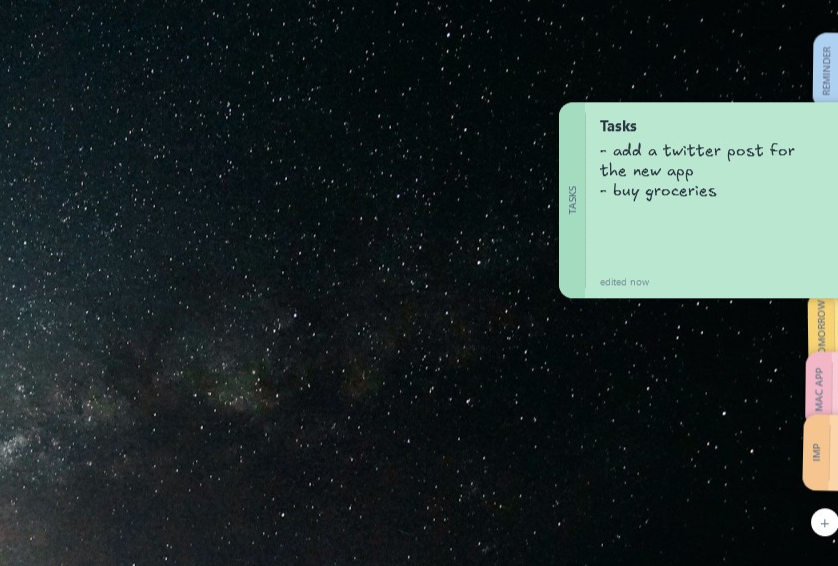
That isn't the same as a pinned window, and sometimes a pinned window is better: the deck shows a note's text only while your pointer is on it. To keep a note in view the whole time - figures you are copying into a form, say - open it from the deck, click into its window and press WinCtrlT: PowerToys pins whichever window is active. The pin goes when you close the window, and the note opens unpinned in the middle of the screen next time.
If you would rather have a pin on every note, other sticky notes apps build one in. Simple Sticky Notes, which is free, has an Always On Top option; Notezilla puts a pin icon on each desktop note's toolbar (CtrlQ); and Pinny Notes, free and open source, is built around its pin button. The best sticky notes apps for Windows compares them.
Choose the deck's edge under Screen edge in Settings; sticky notes on multiple monitors covers which screen the deck uses, and why sticky notes belong at the edge of the screen explains the idea. Peeky Notes costs $5.99 once, after a 7-day trial with no account, no email and no card.
How to hide sticky notes over fullscreen games, films and slideshows
What keeps a note in view also keeps it in the way. Microsoft's Win32 documentation says "A topmost window overlaps all other non-topmost windows, regardless of whether it is the active or foreground window", so a note you have pinned with PowerToys can sit over a fullscreen video or slideshow. Press WinCtrlT on it again, or close it, before you play or present.
Ordinary note windows - a classic Sticky Notes note, or a Peeky Notes note window - need nothing. Windows puts the window you are using at the top of the stack, so a game or film you switch to covers them.
Peeky Notes: Hide over fullscreen apps
Because the deck is always on top, Peeky Notes has a switch to keep it out of the way: Hide over fullscreen apps - "Keeps the deck out of games and presentations." It is on from the start; turn it off if you would rather the deck never hid. You'll find it in Settings under Behaviour, and in the tray menu: right-click the Peeky Notes icon in the notification area.
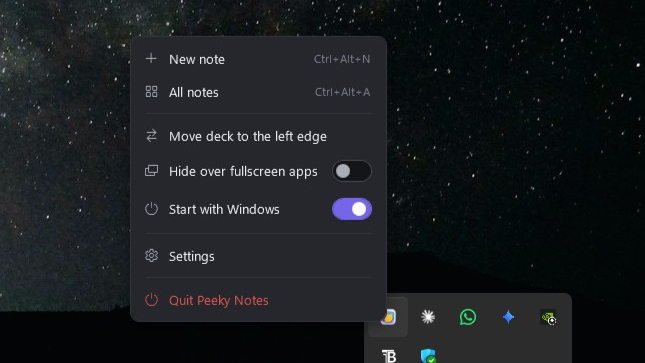
- It hides the deck only while the window you are using is fullscreen on the deck's own display. A game running fullscreen on your other monitor leaves it alone.
- It recognises exclusive fullscreen and presentation mode, and also borderless windows that cover the whole display, such as a video you have made fullscreen. How the Peeky Notes deck stays idle explains how it detects them.
- Maximised windows don't count, and nor do the desktop (WinD), the taskbar, Start, search, Task View, Alt+Tab or widgets.
- The deck comes back when the fullscreen app goes. Left-clicking the tray icon brings it out at any time, even while it is hidden.
- Only the deck hides. A note window you have pinned with PowerToys stays pinned.
Questions
Why won't my sticky notes stay on top of other apps?
If you use the classic Microsoft Sticky Notes app, they can't: Microsoft's support pages say "You cannot currently have Sticky Notes stay on top of other applications." The newer Sticky Notes in the OneNote app can - pop a note out and click the pin icon in its top bar - and PowerToys Always On Top pins whichever window is active when you press WinCtrlT.
Is Win+Ctrl+T built into Windows 11?
No. WinCtrlT is the default shortcut of PowerToys Always On Top, part of Microsoft's free PowerToys utilities, so it only works once PowerToys is installed and Always On Top is enabled. You can change the shortcut in the utility's settings.
Why can't I find the pin in the new Sticky Notes?
The pin is on popped-out notes: double-click a note, or use its pop-out icon, and look in the top bar of the window that opens. Microsoft added it in September 2024 and updates the new Sticky Notes through OneNote, so update OneNote if it is still missing.
Does Peeky Notes have an always-on-top option?
Not for note windows: Peeky Notes has no pin or keep-on-top option for them. Its deck at the left or right screen edge is always on top instead, and a note opens out of it when you hover its tab. To keep a note window itself in view, use PowerToys Always On Top, which pins whichever window is active.
How do I stop sticky notes showing over a fullscreen game?
If you pinned a note with PowerToys, press WinCtrlT on it again or close it, because a pinned window can stay above a fullscreen app. In Peeky Notes, Hide over fullscreen apps is on by default: the deck hides while the window you are using is fullscreen on the deck's display, and comes back afterwards.
Sources
Checked on 14 November 2026. Apps change - if something here has gone out of date, write to [email protected] and it will be corrected.
- Troubleshoot Sticky Notes - Microsoft Support
- Where did my Sticky Notes go? - Microsoft Support
- Get started with Sticky Notes - Microsoft Support
- Introducing the new Sticky Notes app on Windows - Microsoft 365 Insider Blog
- OneNote's new Sticky Notes feature for Windows receives update - Microsoft 365 Blog
- Always On Top utility - Microsoft Learn
- Install PowerToys - Microsoft Learn
- PowerToys: Utilities to customize Windows - Microsoft Learn
- Window Features - Microsoft Learn
- Version History - Simple Sticky Notes
- Download - Simple Sticky Notes
- Pin desktop sticky notes always on top of other apps and programs in Notezilla - Conceptworld
- PinnyNotes - GitHub

Peeky Notes
Sticky notes for Windows 10 and 11
Notes that wait at the edge of your screen.
Seven days with everything unlocked, no account and no card. Then one licence, bought once - and if you never buy, your notes stay readable and exportable.
 Peeky Notes