In short
- A note docked at the edge of the screen avoids the two ways desktop sticky notes usually fail: it is not buried under your windows, as an ordinary note window is, and it does not sit over your work, as a note pinned always on top does.
- Peeky Notes keeps notes at the left or right edge of the screen as a thin strip of coloured pills: reach the edge and they peel out as tabs, hover one to read it, and click it to open it as its own window.
- The Peeky Notes deck has no taskbar button or Alt+Tab entry, lets clicks through to the windows underneath except on and right beside what it draws, shows at most eight tabs with a +N chip for the rest, and hides over fullscreen apps by default.
- The idea comes from Hold My Notes, a Mac app. Peeky Notes is that idea rebuilt for Windows 10 and 11.
On this page
Desktop sticky notes tend to fail in one of two ways: as ordinary windows they get buried under whatever you open next, and pinned always on top they cover part of your work. The edge of the screen avoids both. Notes can wait there as a thin strip, come out when your pointer reaches them and go back when it leaves, which is how Peeky Notes, our sticky notes app for Windows 10 and 11, keeps them.
Why desktop sticky notes get buried or get in the way
A note on the desktop is a window: in the pile with everything else, or pinned above it.
Buried under your windows
A note that behaves like any other window is covered as soon as you open something bigger. To read it you have to clear the way - minimise what is in front, or press WinD to show the desktop - and find your way back afterwards. A sticky note is meant to be read at a glance, and this one now takes effort.
Always on top, and always in the way
The obvious fix is to pin the note above everything else. Some notes apps have a pin of their own; for the rest there is Microsoft's PowerToys Always On Top, which you install separately: WinCtrlT pins the window you are in above the others, and pressing it again lets it go. Our guide to keeping a sticky note always on top covers the options.
A pinned note fixes the first problem by creating the second. It is always visible, so it is always covering something: the end of a line you are typing, a column in a spreadsheet, the corner of a video. Drag it aside and it covers something else. That is what makes sticky notes feel like clutter: not how many there are, but that they sit where your work needs to be.
Why the edge of the screen is a better home
A note resting at the edge is out of the middle of the screen, so it does not compete with your work, but it stays in view, so you know your notes are there. And the edge is easy to hit: the pointer cannot go past the outer edge of a screen, so you only have to aim up or down.
Where the idea came from
The idea is not ours. Hold My Notes is a Mac app whose notes live in a deck docked to the right edge of the screen, out of the way until you reach over, when they fan out. Peeky Notes is that idea rebuilt for Windows by someone who wanted it on a PC, and the credits on its About page link to the original. It follows the original closely: the Hold My Notes site describes its notes shingling down the edge 45 ms apart, the same interval the Peeky Notes deck uses. If you are on a Mac, get the original; for other Windows apps that keep notes at the screen edge, see screen-edge notes apps for Windows.
How notes live at the edge
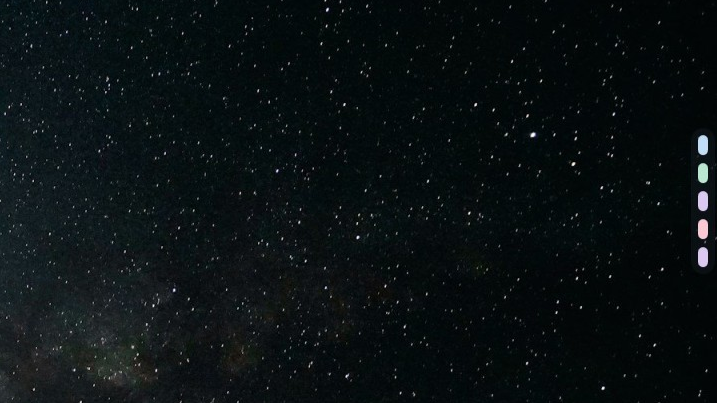
Peeky Notes calls the notes at the edge the deck. At rest it is a thin, dark, see-through strip in the middle of the left or right edge of one display, with a small coloured pill for each note it has room for - at most eight - and no text.
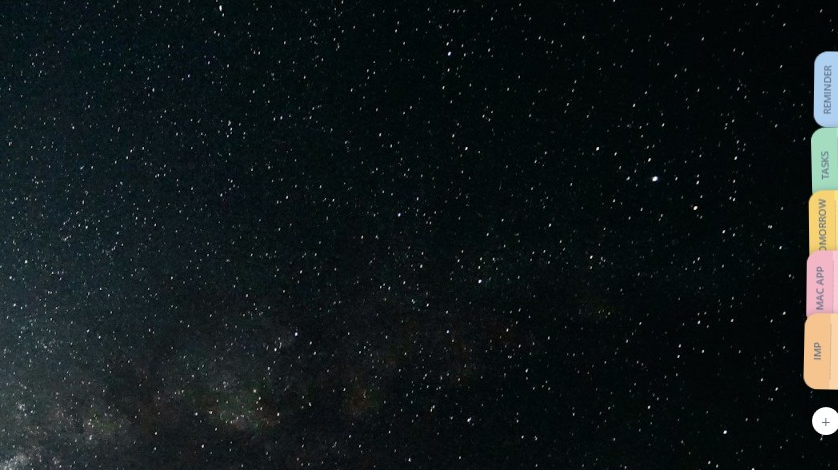
Reach the edge beside the strip and the pills give way to tabs, each carrying its note's title in capitals, turned on its side and cut at eight characters, so Groceries reads GROCERIE. The tabs shingle out 45 ms apart, each with a slight lean, and a round + button below them makes a new note.
Hover a tab and its note grows where it is, anchored to the edge, showing the title, a preview of the text with bullets, numbers and checklist circles drawn in, and when it was last edited, such as “edited 5m”. The tabs below move down to make room. Nothing has been clicked.
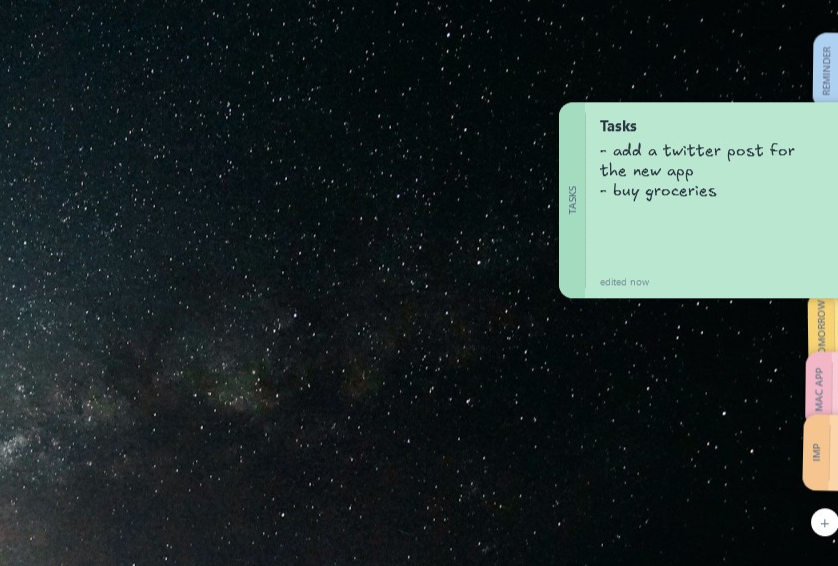
Click the tab or the expanded note and it opens as its own window near the middle of the screen, while the deck tucks back. Move away without clicking and the deck folds back to its pills. The home page shows the deck at work.
Only the deck stays above other windows. A note you open is an ordinary window: click back into your work and it goes behind it like anything else, while its tab waits at the edge.
Why hover expands but click opens
Hovering costs nothing - the pointer ends up at the screen edge for all sorts of reasons - so on the deck it can only show things. The cards are plain text rather than text boxes, so a hover reads a note and stops there: the deck never needs the keyboard and never takes focus from the app you are typing in. A click is deliberate, so it gets the one response that takes over: a window to write in. Hold My Notes puts it in one line: “Nothing is clicked until you want to write.”
The details that keep the edge out of the way
No taskbar button, no Alt+Tab entry
The deck has no taskbar button and no Alt+Tab entry. Note windows have no taskbar button either: a minimised note comes back when you open it again from the deck or from All Notes. All Notes, where you search and manage every note, does show on the taskbar while it is open; otherwise the app's only sign on the taskbar is its tray icon. Hiding sticky notes from the taskbar and Alt+Tab covers what Windows itself can do for classic Microsoft Sticky Notes.
Clicks go through to the window underneath
The deck is an always-on-top window: a column a little wider than an expanded note, running the height of the screen down to the taskbar. Catching every click in that column would make it the worst kind of always-on-top window. Instead it answers only on and right beside what it draws - the pills, the tabs, the chip and the + button - and everywhere else the click goes to the window underneath.
It steps aside for fullscreen apps
Hide over fullscreen apps is on from the start. The deck hides only when a fullscreen window is in front on its own display, so a game on another monitor leaves it alone, and maximising a window or showing the desktop does not count. It comes back when the fullscreen app goes. The switch is under Behaviour in Settings and in the tray menu, and left-clicking the tray icon brings the deck out even while it is hidden.
Eight tabs, then a +N chip
The deck shows at most eight tabs. The reason sits next to the limit in the code: past eight, the stack “stops reading as a deck and starts reading as a list”. The rest wait behind a chip under the tabs - “+3” for three more - which opens All Notes. Short screens show fewer tabs, because the deck keeps room for the + button, the chip and a note expanding.
The limit also keeps the edge from turning into clutter. Mark complete moves a finished note off the deck and into the archive. To choose which notes get a tab, drag them into order in All Notes and the deck follows; dragging on the deck itself rearranges only the tabs already showing.
Timings that keep a hover steady
Hover-to-expand is easy to get wrong: when a note grows, its neighbours move, and the tab that slides under a still pointer can grab the hover and start growing itself. So an expanding note normally keeps the top edge it had when the pointer arrived, only the tabs below it move, and new hovers wait a moment.
| Moment | Timing | Why |
|---|---|---|
| Tabs fan out | 45 ms apart | Each tab follows the one above, so the deck peels out |
| A hovered note expands | 190 ms, plain ease-out | No overshoot, which would push the note past the screen edge and back - a wobble |
| The tabs below make room | The same 190 ms | No stagger, which would open the room after the note had grown into it |
| Hovers after an expand | Ignored for 90 ms | A tab sliding under a still pointer cannot take the hover back |
| The pointer leaves | About 220 ms | Long enough to cross the gap between two tabs without the deck closing |
An expanded note is pushed 20 pixels (at 100% scaling) past the edge of the screen, so its outer corners are out of sight and it reads as attached to the display rather than floating in front of it. Each position on the deck also has its own small, fixed lean, so the tabs read as a hand-made stack rather than a printed row. The engineering side is in how the Peeky Notes deck stays idle.
What this means for your desktop
If your notes keep vanishing under windows or sitting on top of your work, the fix is probably not a better pin but a better place: keep the middle of the screen for the note you are writing, keep what is current at the edge, and let finished notes leave. In Peeky Notes the deck starts on the right edge of your main display, Screen edge in Settings moves it to the left, and CtrlAltN makes a new note from anywhere in Windows.
The edge is not the answer to everything. Peeky Notes has no reminders and does not sync notes to other devices or to a phone; if you need either, our roundup of the best sticky notes apps for Windows covers the alternatives. If the edge sounds right, read getting started with Peeky Notes; for the wider picture, see how to keep sticky notes on your desktop in Windows 11. The 7-day trial needs no account, no email and no card.
Questions
How do I keep sticky notes on my desktop without them covering my windows?
Keep them at the edge of the screen rather than in the middle. Peeky Notes docks notes to the left or right edge as a thin strip of coloured pills, brings them out as tabs when your pointer reaches the strip, and lets clicks through to the windows underneath everywhere except on and right beside what it draws.
Can I pin a sticky note on top of other windows?
It depends on the app: Sticky Notes in the OneNote app can pin a note you pop out, but the classic Microsoft Sticky Notes app can't, according to Microsoft's support pages. For other apps, Microsoft's PowerToys Always On Top, installed separately, pins the active window when you press WinCtrlT; our guide to keeping a sticky note always on top covers each option. A pinned note covers whatever is under it, which is why Peeky Notes keeps only its deck at the screen edge on top and opens notes as ordinary windows.
Will notes at the edge of the screen get in the way of games or presentations?
Not by default. In Peeky Notes, Hide over fullscreen apps is on from the start, so the deck gets out of the way while a fullscreen app fills its display and comes back afterwards. You can switch it off in Settings or from the tray menu.
Does Peeky Notes add a taskbar button or an Alt+Tab entry?
Not for the deck: it has no taskbar button and no Alt+Tab entry, and it never takes keyboard focus. Note windows have no taskbar button either, and the app's menu lives on its tray icon. The All Notes window, where you search and manage your notes, does show on the taskbar while it is open.
Is there a Mac app that keeps notes at the edge of the screen?
Yes - Hold My Notes, which came first and inspired Peeky Notes, keeps its notes in a deck docked to the right edge of a Mac's screen. Peeky Notes is that idea rebuilt for Windows 10 and 11.
Sources
Checked on 14 November 2026. Apps change - if something here has gone out of date, write to [email protected] and it will be corrected.
- Sticky notes docked to the edge of your Mac - Hold My Notes
- PowerToys Always On Top Utility for Windows - Microsoft Learn
- Troubleshoot Sticky Notes - Microsoft Support
- OneNote's new Sticky Notes feature for Windows receives update - Microsoft 365 Blog
- Keyboard shortcuts in Windows - Microsoft Support
- How to use multiple monitors in Windows - Microsoft Support

Peeky Notes
Sticky notes for Windows 10 and 11
Notes that wait at the edge of your screen.
Seven days with everything unlocked, no account and no card. Then one licence, bought once - and if you never buy, your notes stay readable and exportable.
 Peeky Notes