In short
- The classic Microsoft Sticky Notes app is free, preinstalled on Windows 11, and syncs to OneNote on iPhone, iPad and Android once you sign in. Peeky Notes costs $5.99 once, after a 7-day trial, and has no sync, phone or web app.
- The classic Microsoft Sticky Notes app can't keep a note on top of other windows; Sticky Notes in OneNote can pin a popped-out note. Peeky Notes' note windows don't stay on top either, but its deck of notes at the screen edge does, and by default it hides over fullscreen apps.
- Neither Peeky Notes nor the classic Microsoft app needs a Microsoft account. Signed out, the classic app keeps notes only on that PC, and uninstalling or resetting it deletes them. Peeky Notes keeps notes in one file in
Documents\Peeky Notes, which survives an uninstall, and never uploads them.
We make Peeky Notes, so read this knowing that. We have tried to be fair: every claim about another app is checked against that app's own pages, linked under Sources, and we say where it does something better.
On this page
- Which Microsoft Sticky Notes do you have?
- Peeky Notes vs Microsoft Sticky Notes at a glance
- Do you need a Microsoft account, and where do your notes live?
- Can notes stay on top of other windows?
- Formatting, checklists and finding notes
- Privacy: what leaves your PC
- Can you back up and export your notes?
- How much do they cost?
- Phones, the web and which PCs they run on
- Should you switch to a Microsoft Sticky Notes alternative?
- How to switch from Microsoft Sticky Notes to Peeky Notes
- Questions
Stay with Microsoft Sticky Notes - the classic app or the newer one in OneNote - if you want sticky notes that cost nothing, sync to your phone and can hold a picture. Try Peeky Notes, a Microsoft Sticky Notes alternative for Windows 10 and 11, if you want notes out of the way but one hover away at the screen edge, kept in a file on your PC that Peeky Notes never uploads. It adds checklists and Markdown export, and costs $5.99 once.
Which Microsoft Sticky Notes do you have?
Two different things are called Sticky Notes on Windows:
- Microsoft Sticky Notes, the classic Microsoft Store app. It is preinstalled on Windows 11.
- Sticky Notes in OneNote, launched in 2024 as part of the OneNote app. It opens with WinAltS or its own Start menu entry, which Microsoft gave a purple-tinted icon with a “new” tag that year, and adds screenshots, docking and a pin that keeps a note on top. Microsoft says it isn't available with Office LTSC licences or on PCs managed with Intune policy.
Microsoft says the classic app “will still be available” but recommends Sticky Notes in OneNote for new features; old vs new Microsoft Sticky Notes covers what changed and how to switch back. Below, “Microsoft Sticky Notes” means the classic app, which comes with Windows 11; we say where Sticky Notes in OneNote differs.
Peeky Notes vs Microsoft Sticky Notes at a glance
| Peeky Notes | Microsoft Sticky Notes | |
|---|---|---|
| Price | $5.99 once, after a 7-day trial | Free |
| Account | None for the trial; sign in to unlock a bought licence | None needed; sign in to sync |
| Where notes are stored | One file: Documents\Peeky Notes\notes.json | On your PC; once signed in, in your Outlook.com or work mailbox too |
| Sync, phone and web | No | Yes, once signed in: OneNote on iPhone, iPad and Android, Outlook, the web |
| How notes sit on screen | On a deck at the left or right edge; click one to open its window | As windows on the desktop, where you leave them. In OneNote: can also dock to the desktop, beside other apps |
| Keeping a note on top | Note windows: no. The deck stays on top, one hover away | No. In OneNote: yes, for a popped-out note |
| Hiding over fullscreen apps | The deck hides, on by default | Doesn't apply: notes can't stay on top |
| Formatting | Bold, italic, underline, strikethrough, links; four fonts | Bold, italic, underline, strikethrough; fixed font and size |
| Checklists | Yes | Not documented (bullets are) |
| Pictures | No | Yes, and pen input. In OneNote: screenshots |
| Search | Titles and text, in the All Notes window | Yes. In OneNote: text in pictures too |
| Archive | Mark complete takes a note off the deck and keeps it | Closed notes stay in the notes list |
| Export and backup | Markdown or text per note; Back up… saves them all | No export button; Microsoft points to Outlook.com, for synced notes |
| Taskbar | No button for the deck or notes; a tray icon | A taskbar button, which Microsoft suggests pinning |
| Windows | 10 (version 1809 or later) and 11; x64 only, no Arm version | 10 and 11, including Arm PCs. In OneNote: 10 (version 1903 or later) and 11 |
Do you need a Microsoft account, and where do your notes live?
Microsoft Sticky Notes works without signing in, but your notes then stay only on that PC, and Microsoft warns that uninstalling or resetting the app deletes them. Signing in with a Microsoft account turns on sync and stores your notes in Outlook.com, alongside your email; a work or school account needs an Exchange Online mailbox instead, and the notes count against its quota. For Sticky Notes in OneNote, Microsoft's posts only mention signing in to sync, not whether it works without an account.
Peeky Notes never needs a Microsoft account. The 7-day trial needs no account, no email and no card. After you buy, you sign in to unlock the licence, with a code sent to your email or your Google or Microsoft account, and that account holds your licence, not your notes. The notes are one file in Documents\Peeky Notes, which stays put if you uninstall the app. More in using sticky notes without a Microsoft account.
Can notes stay on top of other windows?
Microsoft Sticky Notes: windows on the desktop
Each open note is a window on the desktop. You drag it by the top to where you want it, Microsoft says the app remembers the spot, and notes left open come back after a restart. Other windows cover them, because the classic app can't keep a note on top; Microsoft suggests pinning Sticky Notes to the taskbar instead. Sticky Notes in OneNote can pin a popped-out note above other apps, and can dock to the desktop beside the apps you're using.
Peeky Notes: a deck at the edge
Peeky Notes keeps notes off the desktop, on the deck: a thin strip of coloured pills at the left or right edge of one display. Reach the edge and the pills become tabs; hover a tab and its note opens into a preview; click it and the note opens in its own window. Move away and the deck tucks back.
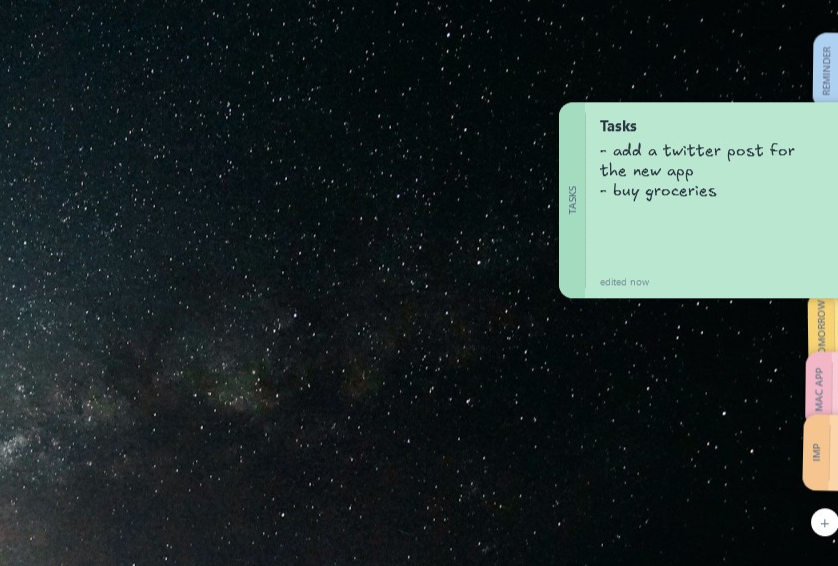
The deck stays on top without getting in the way: no taskbar button, no keyboard focus, and clicks pass through it except on its pills and tabs. Hide over fullscreen apps, on from the start, keeps it out of games and presentations.
Note windows are ordinary windows: they don't stay on top, they open in the middle of the screen, and they aren't reopened when Peeky Notes starts. Notes laid out across the desktop like paper are Microsoft's way, not ours; for pinning a window above everything, see how to keep a sticky note always on top.
Formatting, checklists and finding notes
Both apps cover the basics: bold, italic, underline, strikethrough, bullets and a colour for each note. After that:
- Peeky Notes adds checklists you tick with a click, numbered lists, links on any words and four fonts per note: Handwritten, Normal, Rounded and Typewriter. Move completed to the bottom sends ticked tasks to the end of the list. More on formatting, lists and links.
- Microsoft Sticky Notes adds pictures, pen input and a dark mode that darkens the notes too, but its font and text size can't be changed. Peeky Notes' dark theme leaves notes in their colours.
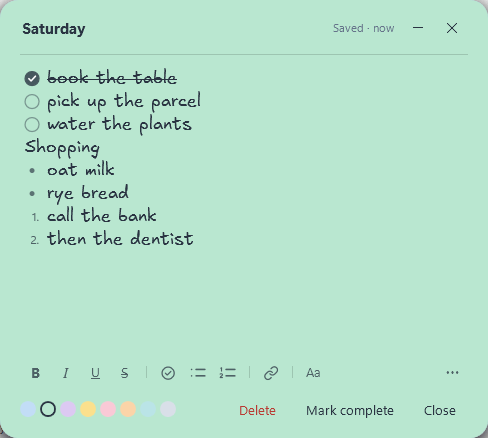
To find notes, Microsoft Sticky Notes has a notes list you search with CtrlF, always with the most recently changed note first. Peeky Notes has the All Notes window (CtrlAltA from anywhere), which searches titles and text, sorts four ways and lets you drag notes to reorder the deck. Mark complete moves a finished note into Archive, where search still finds it. Peeky Notes has no folders or tags.
Privacy: what leaves your PC
Peeky Notes never uploads your notes and has no telemetry, analytics or crash reporting of its own. Until you sign in it makes no network requests, apart from opening links in your browser; once signed in, it checks your licence about every six hours, sending your email address and a device id and name, never note content. If OneDrive backs up your Documents folder, the notes file is in that backup like any other document. Peeky Notes has no lock or password, so keep passwords elsewhere. More in the privacy policy and in your sticky notes don't need a cloud.
Microsoft Sticky Notes stores synced notes in your Outlook.com or Exchange Online mailbox. Sticky Notes in OneNote also captures the app or website a note was made in, with a link back to it.
Can you back up and export your notes?
Microsoft Sticky Notes has no export button. Microsoft points to Outlook.com, which covers only synced notes, and its way to back up notes or move them to a new PC is to sign in with the same account. Deleting a note is permanent, Microsoft says, though a setting can ask first; recovering a deleted sticky note covers where a copy may survive.
Peeky Notes exports any note as Markdown or text from the All Notes window, and Back up… in Settings saves every note as Markdown plus a backup file that Restore… brings back exactly, colours and checklists included. A delete in a note window can be undone for 10 seconds; there is no trash. Export and backup keep working after the trial. Step by step: back up sticky notes and move them to a new PC and export sticky notes to text or Markdown.
How much do they cost?
Microsoft wins on price: the classic app is free, and Sticky Notes in OneNote comes with OneNote, which is free too. Peeky Notes costs $5.99 once for a perpetual personal licence covering two devices at a time, with no subscription. After the 7-day trial your notes turn read-only, not locked away, until you buy a licence.
Phones, the web and which PCs they run on
Microsoft wins here too. Once you sign in, notes from Microsoft Sticky Notes appear in OneNote on iPhone, iPad and Android, in Outlook and on the web, and the classic app runs on Arm PCs too. Peeky Notes is made for x64 PCs with Windows 10 (version 1809 or later) or Windows 11, has no Arm version and comes only from the Microsoft Store. It has no phone app, web app or sync between PCs.
Should you switch to a Microsoft Sticky Notes alternative?
Peeky Notes isn't a better sticky notes app than Microsoft's for everyone. If Microsoft Sticky Notes has stopped opening or your notes have gone missing, try the fixes for Microsoft Sticky Notes not working first. For other options, see the best sticky notes apps for Windows.
Choose Peeky Notes if
- You want notes out of the way, but one hover away at the edge of the screen
- You want checklists, numbered lists, links and a choice of fonts
- You want notes in a file on your PC that the app never uploads, with backups that need no account
- You're happy to pay $5.99 once for a Windows-only app
Choose Microsoft Sticky Notes if
- You want it free, and it comes with Windows 11
- You read or add notes on your phone, in Outlook or on the web
- You like notes placed around the desktop
- You add pictures or write with a pen
- You want one note pinned on top - Sticky Notes in OneNote does that
- Your PC has an Arm processor

Peeky Notes
Sticky notes for Windows 10 and 11
Notes that wait at the edge of your screen.
Seven days with everything unlocked, no account and no card. Then one licence, bought once - and if you never buy, your notes stay readable and exportable.
How to switch from Microsoft Sticky Notes to Peeky Notes
There is no one-click import: Peeky Notes imports only text and Markdown files, so notes move across by copy and paste, or as text files. Keep Microsoft Sticky Notes while you try Peeky Notes, which doesn't touch it or its notes.
- 1
Install Peeky Notes
Get it from the Microsoft Store. The deck starts on the right edge with four sample notes you can delete; getting started with Peeky Notes covers the rest.
- 2
Copy a note
In Microsoft Sticky Notes, open the note and press CtrlA, then CtrlC. Synced notes can also be copied from Outlook on the web.
- 3
Paste it into a new note
Press CtrlAltN, type a title, click into the body and press CtrlV. Pictures stay behind. If a list arrives as plain lines, select them and press CtrlShift8 for bullets or CtrlShiftL for a checklist.
- 4
Or import text files
Paste each note into Notepad and save it as a
.txtfile, then use the import button beside the list heading in the All Notes window to add them all at once. Each file's name becomes the note's title, unless its first line starts with#. Imports arrive as plain text. - 5
Turn on Start with Windows
Right-click the tray icon and switch on Start with Windows; it is off by default. See opening sticky notes when Windows starts.
A few keys work differently in Peeky Notes. More in sticky notes keyboard shortcuts for Windows.
- In a note window, deletes the whole note (with 10 seconds to undo), not the previous wordCtrlBackspace
- Makes a checklist, not bullets; bullets are Ctrl+Shift+8CtrlShiftL
- Strikethrough, which is Ctrl+T in Microsoft Sticky NotesCtrlShiftX
- The All Notes window, where search is; there is no Ctrl+FCtrlAltA
Questions
Can Microsoft Sticky Notes stay on top of other windows?
The classic Microsoft Sticky Notes app can't; Microsoft suggests pinning it to the taskbar instead. Sticky Notes in OneNote can pin a popped-out note on top, and keeping a sticky note always on top covers the other ways. Peeky Notes doesn't pin note windows either, but its deck of notes at the screen edge stays on top.
Is there a sticky notes app that works without a Microsoft account?
Yes. The classic Microsoft Sticky Notes app works signed out, though its notes then stay on that PC only and are deleted if the app is uninstalled or reset. Peeky Notes never needs a Microsoft account: its trial needs no account at all, and a bought licence unlocks when you sign in with a code sent to your email, or with Google or Microsoft.
Can I export my sticky notes?
The classic Microsoft Sticky Notes app has no export button; Microsoft points to Outlook.com, which only covers synced notes. Peeky Notes exports any note as Markdown or plain text from the All Notes window, and Back up… in Settings saves every note at once, even after the trial ends. Exporting sticky notes to text or Markdown has the steps for both apps.
Is it possible to put a checkbox in sticky notes?
Not in the classic Microsoft Sticky Notes app as Microsoft documents it: its formatting covers bold, italic, underline, strikethrough and bullets. Peeky Notes has real checklists: press CtrlShiftL or type [ ] and a space at the start of a line, then tick tasks with a click. A to-do checklist on your Windows desktop covers both apps in detail.
How do you copy existing Sticky Notes to a new computer?
For the classic Microsoft Sticky Notes app, sign in with the same account on both PCs and let the notes sync, as Microsoft advises. For Peeky Notes, use Back up… in Settings on the old PC and Restore… on the new one; a licence covers two devices at a time. Backing up sticky notes and moving them to a new PC has the steps.
Sources
Checked on 14 November 2026. Apps change - if something here has gone out of date, write to [email protected] and it will be corrected.
- Get started with Sticky Notes - Microsoft Support
- See your sticky notes on other devices and the web - Microsoft Support
- Create a sticky note - Microsoft Support
- Delete a sticky note - Microsoft Support
- Troubleshoot Sticky Notes - Microsoft Support
- Where did my Sticky Notes go? - Microsoft Support
- Export your sticky notes - Microsoft Support
- Create, edit, and view sticky notes in Outlook.com or Outlook on the web - Microsoft Support
- Keyboard shortcuts for Sticky Notes - Microsoft Support
- Use a screen reader with Sticky Notes - Microsoft Support
- Microsoft Sticky Notes - Microsoft Store
- Introducing the new Sticky Notes app on Windows - Microsoft 365 Insider Blog
- Remember better with the new Sticky Notes experience from OneNote - Microsoft 365 Blog
- OneNote's new Sticky Notes feature for Windows receives update - Microsoft 365 Blog
- Policy-based removal of pre-installed Microsoft Store apps - Windows IT Pro Blog
- What's the difference between the OneNote versions? - Microsoft Support
Peeky Notes
Sticky notes for Windows 10 and 11
Notes that wait at the edge of your screen.
Seven days with everything unlocked, no account and no card. Then one licence, bought once - and if you never buy, your notes stay readable and exportable.
 Peeky Notes