In short
- Microsoft Sticky Notes, the classic app that comes with Windows 11, has no export command. Microsoft points to Outlook.com instead, which only holds notes synced from a signed-in account.
- To save a note from the classic Microsoft Sticky Notes app as a text file, click in it, press CtrlA and CtrlC, paste into Notepad or another text editor, and save it as
.txt, or.mdfor Markdown. - Peeky Notes exports any note as Markdown or plain text from the All Notes window, keeping lists and ticks, and Back up… in Settings writes every note as its own Markdown file. Exporting is never locked, even after the trial.
- Peeky Notes imports
.mdand.txtfiles, one note per file, as plain text: Markdown marks such as- [ ]stay as typed characters.
On this page
The classic Microsoft Sticky Notes app has no export command, so the dependable way to export sticky notes as text is to copy them: click in a note, press CtrlA and CtrlC, paste into a text editor and save the file as .txt, or .md for Markdown. Microsoft's own answer, exporting from Outlook.com, only covers notes you have synced while signed in. Peeky Notes, the sticky notes app we make for Windows, exports any note as Markdown or plain text, and writes every note out as a Markdown file when you back up.
Can you export notes from Microsoft Sticky Notes?
Not from inside the classic Sticky Notes app that comes with Windows 11; the newer one in OneNote is covered below. Microsoft's answer to "Can I export my sticky notes?" is to export them from Outlook.com, where synced notes are stored with your email, calendar and contacts. That only applies if you signed in to Sticky Notes and synced, on version 3.0 or later.
As of November 2026 that route is hard to follow. The how-to link on Microsoft's export page now opens an article about Outlook.com search history, and Microsoft's guide to exporting an Outlook.com mailbox calls for desktop Outlook and a .pst file holding email, contacts and calendar, with no mention of notes. If you never signed in, there is nothing in Outlook to export.
How to save Microsoft Sticky Notes as a text file
- 1
Select and copy the note
Click inside the note in classic Microsoft Sticky Notes and press CtrlA, then CtrlC.
- 2
Paste it into a text editor
Open Notepad, or any editor you like, and press CtrlV.
- 3
Save it
Give the file a
.txtextension, or.mdfor Markdown, which is plain text too. Name it after the note, then repeat for the next one.
A text file keeps the words only, not the note's colour or pictures, and this works whether or not you ever signed in. Synced notes also show up in the Notes folder of Outlook.com and Outlook on the web, at onenote.com/stickynotes and in OneNote on your phone, so you can copy them from there too.
The newer Sticky Notes in OneNote
Microsoft's newer Sticky Notes, the one WinAltS opens, is a feature of the OneNote app. Its "…" menu has Copy Note, which copies a whole note, text and images, for pasting into another app. Microsoft's announcements of it mention no export to a file.
Reading the plum.sqlite file (advanced)
The classic app keeps all its notes in one SQLite database, plum.sqlite, in %LocalAppData%\Packages\Microsoft.MicrosoftStickyNotes_8wekyb3d8bbwe\LocalState. Microsoft's help pages don't document it; the path comes from a Microsoft Q&A moderator and from How-To Geek.
In February 2026 that moderator suggested opening a copy in DB Browser for SQLite, selecting the Notes table on the Browse Data tab, then File > Export > Table(s) as CSV files. In a later reply they said there is no supported way to get plain text out without the database's internal ID numbers, so expect to tidy the result. If notes have gone missing, start with fixing Microsoft Sticky Notes and getting notes back instead.
How to export sticky notes from Peeky Notes
- 1
Open All Notes
Press CtrlAltA from anywhere, or right-click the Peeky Notes tray icon and choose All notes.
- 2
Select the note
Click it in the list to open it in the right-hand pane.
- 3
Click the export icon
It sits above the note, with the tooltip Export this note as Markdown or text.
- 4
Choose a format and save
The Export note dialog names the file after the note's title. Keep Markdown (*.md), or choose Text file (*.txt) and check the name ends in
.txt: the extension decides the format. Pick a folder and save.
Export works one note at a time, and only from All Notes, not from a note's own window. It is never locked: during the trial, after it or with no licence, every note can still be exported. Copying a note's text into another app carries the words but not its bullets, numbers or ticks, so export when the lists matter. Getting started with Peeky Notes tours the All Notes window.
What survives the export
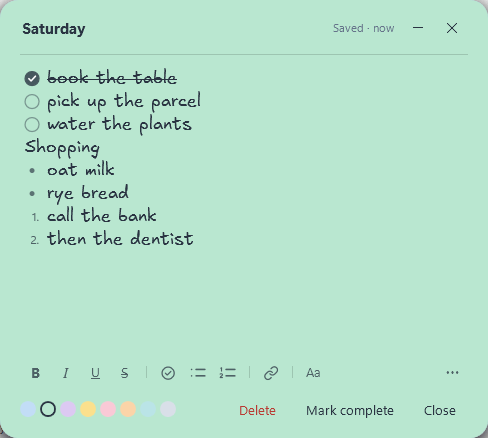
# Saturday and its lines become - [ ] water the plants, - oat milk and 1. call the bank; as text, the bullet is • oat milk.| In the note | Markdown (.md) | Text (.txt) |
|---|---|---|
| Title | # Title as the first line | The title as the first line |
| Bulleted list | - oat milk | • oat milk |
| Numbered list | 1. call the bank | 1. call the bank |
| Checklist | - [ ] open, - [x] ticked | - [ ] open, - [x] ticked |
| Bold, italic, strikethrough | **bold**, *italic*, ~~struck~~ | Words kept, styling dropped |
| Underline | <u>underlined</u> | Words kept, styling dropped |
| Link | [words](address) | Words kept, address dropped |
| Colour, font, archive state, dates | No | No |
Characters Markdown would misread, such as a * in your own text, get a backslash in front of them.
Exporting every note at once
Open Settings and, under Your notes, click Back up… beside Back up all notes. Pick a folder, and Peeky Notes makes a dated one inside it, such as Peeky Notes backup 2026-11-14 0930, holding one .md file per note, archived ones included, named after each note's title. Beside them is peekynotes-backup.json, which Restore… reads to bring notes back exactly, colours and fonts included; backing up sticky notes and moving them to a new PC covers that side.
How to import .md and .txt files into Peeky Notes
In All Notes, click the import icon to the right of the list heading; its tooltip reads Import notes from .md or .txt files. Pick one file or several; each becomes a new note. A file whose first line starts with # takes the rest of that line as its title; any other file is titled with its file name.
Imports arrive as plain text: Peeky Notes doesn't convert Markdown, so - [ ], **bold** and backslashes stay as typed characters, and re-importing an export brings back the words but not the checklist. Use Back up… and Restore… for an exact copy. Importing needs an active trial or licence.
How to move notes from Microsoft Sticky Notes to Peeky Notes
- 1
Save each note as a file
Copy each note into a text editor and save it as
.txtor.md, as above. The file name becomes the note's title in Peeky Notes, unless the first line is#followed by a title. - 2
Import them in one go
In Peeky Notes, press CtrlAltA, click the import icon beside the list heading, and select them all.
- 3
Rebuild your lists
Lists arrive as ordinary lines. Select the lines that were a checklist and press CtrlShiftL, or CtrlShift8 for bullets or CtrlShift7 for numbers, then delete any leftover marker characters.
For a handful of notes, skip the files: press CtrlAltN for a new note, type a title, click in the body and paste, then rebuild lists the same way. Pictures don't come across, because a Peeky Notes note holds text, not images. Peeky Notes vs Microsoft Sticky Notes sets out the other differences: the classic Microsoft app is free and syncs to your phone when you sign in; Peeky Notes costs $5.99 once after a 7-day trial with no account, email or card, and never uploads your notes.
Questions
Can I export my sticky notes?
Classic Microsoft Sticky Notes has no export command; Microsoft points to Outlook.com, which only holds notes synced while signed in. Copying each note into a text editor and saving it as .txt works whether or not you signed in. Peeky Notes exports any note as a .md or .txt file.
Can I export all my sticky notes at once?
Not from inside classic Microsoft Sticky Notes. Microsoft's route is an Outlook.com export, for synced notes only, and a Microsoft Q&A moderator describes exporting the app's plum.sqlite database to CSV with DB Browser for SQLite. In Peeky Notes, Back up… in Settings writes every note as a Markdown file.
Can I still export notes after the Peeky Notes trial ends?
Yes. Reading, searching, exporting and Back up… keep working with or without a licence; writing, editing and importing need one.
How do I print a sticky note?
Copy the note into a text editor or word processor and print it from there. Peeky Notes has no print command, so export the note or copy its text first.
Sources
Checked on 14 November 2026. Apps change - if something here has gone out of date, write to [email protected] and it will be corrected.
- Troubleshoot Sticky Notes - Microsoft Support
- Export your sticky notes - Microsoft Support
- Delete or export your search history in Outlook.com - Microsoft Support
- Export your Outlook.com mailbox - Microsoft Support
- Keyboard shortcuts for Sticky Notes - Microsoft Support
- See your sticky notes on other devices and the web - Microsoft Support
- Create, edit, and view sticky notes in Outlook.com or Outlook on the web - Microsoft Support
- Microsoft Sticky Notes - Microsoft Store
- Policy-based removal of pre-installed Microsoft Store apps - Windows IT Pro Blog
- Introducing the new Sticky Notes app on Windows - Microsoft 365 Insider Blog
- Remember better with the new Sticky Notes experience from OneNote - Microsoft 365 Blog
- OneNote's new Sticky Notes feature for Windows receives update - Microsoft 365 Blog
- How to restore the overwritten Sticky Notes using plum.sqlite? - Microsoft Q&A
- How to Back Up Sticky Notes on Windows 11 - How-To Geek

Peeky Notes
Sticky notes for Windows 10 and 11
Notes that wait at the edge of your screen.
Seven days with everything unlocked, no account and no card. Then one licence, bought once - and if you never buy, your notes stay readable and exportable.
 Peeky Notes