In short
- The classic Microsoft Sticky Notes app that comes with Windows 11 has no checkboxes: Microsoft lists its formatting as bold, italic, underline, strikethrough and bullets.
- In Peeky Notes, typing
[ ]and a space at the start of a line, or pressing CtrlShiftL, starts a checklist. Clicking a task's circle ticks it and strikes its words through. - In Peeky Notes, Move completed to the bottom in a note's ⋯ menu sends each task to the end of its checklist as you tick it.
- Peeky Notes keeps your lists as tabs on a deck at the left or right edge of the screen, above other windows: hover a tab to read the list, click it to open the note and tick things off.
On this page
To keep a to-do list on your desktop in Windows you need two things: boxes you can tick, and a place for the list that other windows don't bury. The classic Microsoft Sticky Notes app that comes with Windows 11 offers bullets and strikethrough instead of checkboxes, and Microsoft says its notes can't stay on top of other apps. Peeky Notes, a sticky notes app for Windows 10 and 11, has real checklists and keeps your lists one hover away on a deck at the edge of the screen.
Can you put checkboxes in Microsoft Sticky Notes?
Not in the classic app. Microsoft's help lists what you can do to text in a note - bold, italic, underline, strikethrough and bullets - and a checkbox is not on the list. A common workaround is a bulleted list (CtrlShiftL in that app) with finished items crossed out: select one and press CtrlT for strikethrough.
Microsoft's newer Sticky Notes is part of the OneNote app and opens with WinAltS. It can pin a popped-out note on top of other windows, which the classic app can't, but we couldn't confirm checkboxes in it from Microsoft's documentation. OneNote itself, a notebook app, does have documented checkboxes: select lines on a page and click the To Do tag on the Home tab, and each line gets a box to tick. Microsoft To Do, Microsoft's free task app, has due dates and reminders, according to its Store listing. Sticky Notes vs OneNote vs Notepad vs To Do compares Microsoft's notes apps side by side.
| Microsoft Sticky Notes (classic) | Sticky Notes in OneNote | Peeky Notes | |
|---|---|---|---|
| Checklists you can tick | No | Not confirmed | Yes |
| Stays above other windows | No | A popped-out note can be pinned on top | The deck at the screen edge does; note windows don't |
| Price | Free | Free, with the OneNote app | $5.99 once, after a 7-day trial |
The rest of the differences are in Peeky Notes vs Microsoft Sticky Notes.
How to make a checklist in Peeky Notes
- 1
Open a new note
Press CtrlAltN from anywhere in Windows, or click the + below the tabs on the deck. Type a short title over Untitled note.
- 2
Start the checklist
Click in the body and, at the very start of a line, type
[ ]and press Space. The brackets become a circle. CtrlShiftL, or the Checklist button in the strip along the bottom of the note, does the same. - 3
Add tasks
Type a task and press Enter for the next one. Press Enter on an empty task to end the list.
- 4
Tick them off
Click the circle beside a task: it gets a tick and the words get a line through them. Click it again to untick.
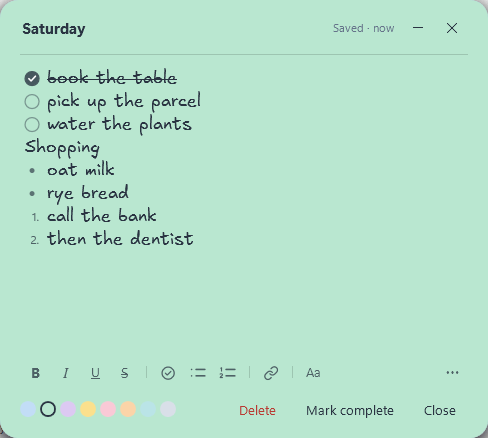
If the list is already typed as plain lines, select them and press CtrlShiftL to turn them all into tasks. Press it again to turn them back, or press Backspace at the start of one task to remove its circle.
Bullets and numbered lists
They work the same way and can share a note with a checklist. Type - or * and a space for bullets, or 1. and a space for numbers - only 1. starts a list, so 4. stays as typed. Numbering starts again after any line that isn't numbered.
- ChecklistCtrlShiftL
- Bulleted listCtrlShift8
- Numbered listCtrlShift7
How to send finished tasks to the bottom
Click ⋯ (Note options) at the right end of the strip and choose Move completed to the bottom. Ticked tasks then drop to the end of their checklist, straight away and each time you tick another, and the rest keep their order. The option is set per note, with a tick beside it while it is on. If a note holds two separate checklists, each is sorted on its own.
How the list stays on your desktop
Peeky Notes keeps notes on the deck, along the left or right edge of the screen - you choose which under Screen edge in Settings. At rest it is a thin strip of coloured pills. Move the pointer to the edge and the pills become tabs showing each note's title. Hover a tab and that note grows out from the edge with its circles drawn and finished tasks crossed through. Click it to open the note in its own window and tick things off.

The deck stays above other windows and steps aside when a game or presentation goes fullscreen (Hide over fullscreen apps, on by default). It shows a list on demand, not all the time, and the peek has a fixed height, so a long list shows only its top lines. With Move completed to the bottom on, those are the tasks still to do.
A note's own window is an ordinary window: other apps can cover it, it has no keep-on-top option, and it doesn't reopen after a restart. For one note fixed over everything, see how to keep a sticky note always on top. For the deck to be there after a restart, switch on Start with Windows in the tray menu or Settings; it is off by default, and opening sticky notes when Windows starts covers the rest.
A tidy way to run a to-do list on your desktop
- One list per note. Today, Work, Home, a project: each list gets its own tab, so the one you need is a hover away rather than a scroll.
- Titles of eight characters or fewer. A tab shows its title in capitals and stops at eight characters, with no ellipsis: Groceries becomes GROCERIE. TODAY, WORK and ERRANDS fit.
- A colour for each context. There are eight: Blue, Mint, Lilac, Butter, Blush, Peach, Sky and Slate. Click a dot along the bottom of the note, or press Ctrl. to step through them. A new note takes a colour no other note has, until all eight are in use.
- The most pressing list on top. Hold a tab by its coloured strip, where the title runs, and drag it up or down. New notes join at the bottom, and the All Notes window keeps the same order.
- Mark complete instead of deleting. When a list is done, click Mark complete. The note leaves the deck but stays under Archive in the All Notes window, and in search. CtrlAltL opens the archive, and Restore to the deck brings a list back.
- Reuse the lists you repeat. Keep an unticked master copy of, say, a packing list in the archive, and copy it into a new note when you need it: tasks keep their circles when copied between notes.
- Keep the deck short. It shows up to eight tabs, fewer on a small screen, and the rest wait behind a chip such as +3 that opens All Notes. Archive what you aren't working on.
What a Peeky Notes list can't do
There are no reminders, alarms or due dates, no sub-tasks or indented lists, and no phone app or sync between PCs. You can't tick a task from the deck itself; open the note first. If your list needs deadlines or your phone, a task app such as Microsoft To Do will serve it better. For the rest of the app, see getting started with Peeky Notes.
Questions
Is it possible to put a checkbox in Microsoft Sticky Notes?
Not in the classic Microsoft Sticky Notes app: Microsoft lists its formatting as bold, italic, underline, strikethrough and bullets, so a common workaround is bullets with finished items struck through using CtrlT. Microsoft's documentation doesn't confirm checkboxes in the newer Sticky Notes in OneNote, but OneNote's own To Do tag puts a checkbox beside each selected line.
How do I put a to-do list on my desktop in Windows 11?
Use a sticky notes app with real checklists that stays in reach. In Peeky Notes, press CtrlAltN, type a title, then click in the body and type [ ] and a space to start a checklist; the note lives as a tab at the edge of your screen.
Can I cross out items on a sticky note when they're done?
In Peeky Notes, clicking a task's circle ticks it and crosses its words through; clicking again undoes both. In the classic Microsoft Sticky Notes app, select the item and press CtrlT.
Can a sticky note checklist remind me when something is due?
Not in Peeky Notes: it has no reminders, alarms or due dates. For deadlines, use your calendar or a task app such as Microsoft To Do, which has due dates and reminders according to its Microsoft Store listing.
How much does Peeky Notes cost?
$5.99, paid once: a one-time licence, not a subscription. The 7-day trial unlocks everything and needs no account, no email and no card.
Sources
Checked on 14 November 2026. Apps change - if something here has gone out of date, write to [email protected] and it will be corrected.
- Create a sticky note - Microsoft Support
- Keyboard shortcuts for Sticky Notes - Microsoft Support
- Microsoft Sticky Notes - Microsoft Store
- Policy-based removal of pre-installed Microsoft Store apps - Windows IT Pro Blog
- Introducing the new Sticky Notes app on Windows - Microsoft 365 Insider Blog
- OneNote's new Sticky Notes feature for Windows receives update - Microsoft 365 Blog
- What's the difference between the OneNote versions? - Microsoft Support
- Create a To Do Checklist in OneNote - Microsoft Support
- Microsoft To Do: Lists, Tasks & Reminders - Microsoft Store

Peeky Notes
Sticky notes for Windows 10 and 11
Notes that wait at the edge of your screen.
Seven days with everything unlocked, no account and no card. Then one licence, bought once - and if you never buy, your notes stay readable and exportable.
 Peeky Notes