In short
- Microsoft lists no shortcut that opens classic Microsoft Sticky Notes from anywhere: press Win, type
sticky notesand press Enter, or pin it to the taskbar and press Win with its position number, such as Win2. - The newer Sticky Notes in Microsoft's OneNote app opens from anywhere with WinAltS.
- Inside classic Microsoft Sticky Notes, CtrlN makes a new note, CtrlW closes it, CtrlD deletes it and CtrlT is strikethrough.
- Peeky Notes has three shortcuts that work anywhere in Windows: CtrlAltN for a new note, CtrlAltA for the All Notes window and CtrlAltL for the archive.
On this page
Classic Microsoft Sticky Notes, preinstalled on Windows 11, has no documented shortcut that opens it from anywhere: press Win (the Windows logo key), type sticky notes and press Enter, or pin it to the taskbar and press Win with its position number. Microsoft's newer Sticky Notes in the OneNote app opens with WinAltS, and Peeky Notes, the app we make, opens a new note from any app with CtrlAltN. The full sticky notes keyboard shortcuts for the classic app and Peeky Notes follow.
Is there a shortcut to open Sticky Notes?
For the newer Sticky Notes in OneNote, yes: WinAltS opens it from anywhere. It is part of the OneNote app for Windows, so it needs OneNote installed. Microsoft documents no such key for the classic app, so use Start or the taskbar:
- From Start: press Win, type
sticky notesand press Enter. If you have no notes yet, Sticky Notes creates one. With OneNote installed, Start lists both apps: in 2024 Microsoft gave the newer one a purple-tinted icon with a “new” tag. - From the taskbar: with Sticky Notes open, right-click its taskbar icon and choose Pin to taskbar. Then Win1 opens the first app pinned to the taskbar, Win2 the second, and so on, or switches to it if it is already open.
- A new note from the taskbar: WinAlt with the same number, such as WinAlt2, opens the icon's jump list - the menu you get by right-clicking it - where you can choose New note.
Or skip the keyboard: open sticky notes automatically when Windows starts.
Classic Microsoft Sticky Notes keyboard shortcuts
Microsoft publishes these for the classic app, for a US keyboard layout. They work once it is open.
Notes and the notes list
- New note, from a note or the notes listCtrlN
- Close the current noteCtrlW
- Delete the current noteCtrlD
- Delete the selected note, in the notes listDelete
- Go to the list of all notesCtrlH
- Next open note, or the notes listCtrlTab
- Previous open note, or the notes listCtrlShiftTab
- Search, from the notes listCtrlF
- Clear the search and go back to the notes listEsc
- Close Sticky Notes, so open notes don't reappear after a restartAltF4
Formatting
- BoldCtrlB
- ItalicCtrlI
- UnderlineCtrlU
- StrikethroughCtrlT
- Bulleted list on or offCtrlShiftL
Editing text
- Select allCtrlA
- CopyCtrlC
- CutCtrlX
- PasteCtrlV
- UndoCtrlZ
- RedoCtrlY
- One word leftCtrlLeft arrow
- One word rightCtrlRight arrow
- Start of the lineHome
- End of the lineEnd
- Start of the noteCtrlHome
- End of the noteCtrlEnd
- Delete the next wordCtrlDelete
- Delete the previous wordCtrlBackspace
Peeky Notes keyboard shortcuts
Peeky Notes is our sticky notes app for Windows 10 and 11, with notes that wait at the edge of the screen. Its main keys are listed under Shortcuts in Settings - right-click the tray icon and choose Settings. For what each feature does, see getting started with Peeky Notes.
Anywhere in Windows
- New note, in its own windowCtrlAltN
- Open the All Notes windowCtrlAltA
- Open All Notes, showing the ArchiveCtrlAltL
These global hotkeys work while Peeky Notes is running - turn on Start with Windows in Settings or the tray menu to have it running after a restart. No key brings out the deck: the pointer at the screen edge does, or a click on the tray icon.
In a note window
- Close the note (an open link box or menu closes first)Esc
- Cycle the note's colour, through all eightCtrl.
- Delete the note, with ten seconds to undoCtrlBackspace
- Undo the delete, within those ten secondsCtrlZ
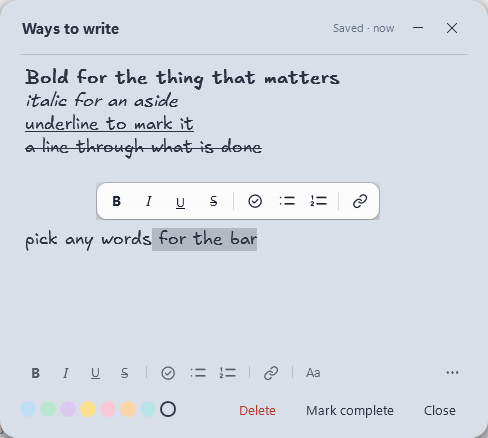
While writing
These work in a note window and when you edit a note in All Notes.
- BoldCtrlB
- ItalicCtrlI
- Underline (select the words first)CtrlU
- Strikethrough (select the words first)CtrlShiftX
- ChecklistCtrlShiftL
- Bulleted listCtrlShift8
- Numbered listCtrlShift7
- Add or edit a link on selected words (Enter or Tab applies, Esc cancels)CtrlK
- Open a link in your default browserCtrlclick
- On an empty list line, end the listEnter
- On an empty list line, end the listDelete
- At the start of a list line, remove its bullet, number or circleBackspace
- UndoCtrlZ
Pressing a list key again turns the lines back into plain text. Settings doesn't list these keys, but each formatting button names its key in its tooltip, such as Bold (Ctrl+B).
List shorthand at the start of a line
Type one of these at the very start of an ordinary line, then press Space. The typed characters disappear, and Backspace or CtrlZ straight away gives them back as plain text.
- Bulleted list-Space
- Bulleted list*Space
- Numbered list (only 1. starts one)1.Space
- Checklist[ ]Space
- Checklist[]Space
- Checklist item, already ticked ([X] works too)[x]Space
What if another app already uses the same shortcut?
Peeky Notes claims CtrlAltN, CtrlAltA and CtrlAltL once, as it starts. If another app has already claimed one, that shortcut does nothing in Peeky Notes, and no message says so. The keys can't be changed, so:
- 1
Use the tray menu meanwhile
Right-click the tray icon for New note or All notes. The archive has no tray item: open All notes, then choose Archive in the sidebar.
- 2
Free the keys in the other app
Change or turn off the clashing shortcut in that app's own settings.
- 3
Restart Peeky Notes
Choose Quit Peeky Notes in the tray menu, then open Peeky Notes again from Start, so it can claim the keys.
If CtrlAltN opens All Notes instead of a new note, that is not a clash: editing is locked, usually because the 7-day trial has ended, and a banner at the top of All Notes says why.
Switching from classic Microsoft Sticky Notes: the keys that change
Bold, italic and underline use the same keys in both apps: CtrlB, CtrlI and CtrlU. These do not:
| To do this | Microsoft Sticky Notes (classic) | Peeky Notes |
|---|---|---|
| New note | CtrlN, with the app open | CtrlAltN, from any app |
| Go to all your notes | CtrlH, with the app open | CtrlAltA, from any app |
| Close a note | CtrlW | Esc |
| Delete a note | CtrlD | CtrlBackspace, with ten seconds to undo |
| Strikethrough | CtrlT | CtrlShiftX |
| Bulleted list | CtrlShiftL | CtrlShift8 |
| Checklist | Not in Microsoft's list | CtrlShiftL |
| Search | CtrlF, in the notes list | No shortcut - use the search box in All Notes |
For how the two apps differ beyond the keyboard, see Peeky Notes vs Microsoft Sticky Notes.
Questions
How do I create a new sticky note with the keyboard?
In classic Microsoft Sticky Notes, press CtrlN in any note or in the notes list. From outside the app, pin it to the taskbar and press WinAlt with its position number to open its jump list, then choose New note. In Peeky Notes, CtrlAltN makes a new note from any app.
Does Win+Ctrl+T pin a sticky note on top?
Not by itself: WinCtrlT is the default key of PowerToys Always On Top, a separate Microsoft utility that pins the active window above others once installed and turned on. Microsoft doesn't say whether that works on classic Microsoft Sticky Notes, which can't stay on top on its own; Sticky Notes in OneNote has a pin icon on popped-out notes. More in how to keep a sticky note always on top.
Can I change the Peeky Notes keyboard shortcuts?
No. The keys are fixed, and no setting changes them. If one clashes with another app, change the shortcut in that app, then quit and reopen Peeky Notes so it can claim the keys.
Are the shortcuts the same on Windows 10?
Yes. Classic Microsoft Sticky Notes is the same Microsoft Store app on Windows 10 and 11, and the taskbar number keys work on both. Peeky Notes runs on Windows 10 version 1809 or later with the same shortcuts as on Windows 11.
Sources
Checked on 14 November 2026. Apps change - if something here has gone out of date, write to [email protected] and it will be corrected.
- Keyboard shortcuts for Sticky Notes - Microsoft Support
- Use a screen reader with Sticky Notes - Microsoft Support
- Get started with Sticky Notes - Microsoft Support
- Keyboard shortcuts in Windows - Microsoft Support
- Taskbar Extensions - Microsoft Learn
- Introducing the new Sticky Notes app on Windows - Microsoft 365 Insider Blog
- OneNote's new Sticky Notes feature for Windows receives update - Microsoft 365 Blog
- Policy-based removal of pre-installed Microsoft Store apps - Windows IT Pro Blog
- Microsoft Sticky Notes - Microsoft Store
- PowerToys Always On Top - Microsoft Learn

Peeky Notes
Sticky notes for Windows 10 and 11
Notes that wait at the edge of your screen.
Seven days with everything unlocked, no account and no card. Then one licence, bought once - and if you never buy, your notes stay readable and exportable.
 Peeky Notes